Fabric terminology

Learn the definitions of terms used in Microsoft Fabric, including terms specific to Fabric Data Engineering, Data Factory, Fabric Data Science, Fabric Data Warehouse, IQ, Real-Time Intelligence, and Power BI.

General terms

Capacity

Dedicated compute resources for Fabric workloads.

Capacity defines the ability of a resource to perform an activity or to produce output. Different items consume different capacity at a certain time.

Direct Lake

Query Delta tables directly without import.

Experience

An Experience in Fabric refers to a specific workload environment or toolset designed for a particular data task.

Examples of Experiences

  • Microsoft Fabric Data Engineering
  • Microsoft Fabric Data Factory
  • Microsoft Fabric Data Science
  • Microsoft Fabric Data Warehouse
  • Microsoft Fabric Power BI
  • Microsoft Fabric Real-Time Intelligence

Experiment

An Experiment in Fabric is used in data science and machine learning to track multiple model training runs and compare results.

IQ

Ontology (preview) is an item where you can define entity types, relationships, properties, and other constraints to organize data according to your business vocabulary.

Item

An item is an object that actually created. It is a set of capabilities within a workload. Users can create, edit, and delete them. Each item type provides different capabilities. For example, the Data Engineering workload includes the lakehouse, notebook, and Spark job definition items.

ExperienceItem
Data EngineeringLakehouse
Data FactoryPipeline
Data WarehouseWarehouse
Power BIReport
Real-Time AnalyticsEventstream

Lakehouse

Combines data lake storage with data warehouse features.

A lakehouse is a database built over a data lake, containing files, folders, and tables. It is used by the Apache Spark engine and SQL engine for big data processing. Lakehouses support ACID transactions when using the open-source Delta formatted tables. The lakehouse item is hosted within a unique workspace folder in Microsoft OneLake.

Liquid Clustering

Adaptive clustering mechanism for Delta tables

OneLake

A single, unified data lake for the entire Fabric tenant.

Shortcut

Shortcuts are embedded references within OneLake that point to other file store locations. They provide a way to connect to existing data without having to directly copy it.

V-order

V-Order (Vertical Order) is a column-oriented data layout optimization used in Fabric Lakehouse to improve analytic query performance, especially for Power BI Direct Lake.

A write optimization to the parquet file format that enables fast reads and provides cost efficiency and better performance. All the Fabric engines write v-ordered parquet files by default.

Workload / Experience

In Microsoft Fabric, a Workload (also called an Experience) is a functional area of the platform that provides a specific type of analytics capability.

Each workload has:

  • Its own UI
  • Its own tools
  • Its own compute behavior
  • But shares OneLake and security

Workspace

A logical container for Fabric items.

Appendix
Microsoft Fabric terminology

Day 6: Registering Azure Synapse Analytics workspaces and scan in Microsoft Purview

Previously, we’ve talked about how Purview connect to ADLS and SQL Database, scan in Purview. Today, we focused on Azure Synapse Analytics with Purview.

A comprehensive data analytics solution can include many folders and files in a data lake, and multiple databases that each contain many tables, each with multiple fields. For a data analyst, finding and understanding the data assets associated with a Synapse Analytics workspace can present a significant challenge before any analysis or reporting can even begin.

As we know the Azure Synapse Analytics is a platform for cloud-scale analytics workloads that process data in multiple sources; including:

  • Relational databases in serverless and dedicated SQL pools
  • Files in Azure Data Lake Storage Gen2

Microsoft Purview can help in this scenario by cataloging the data assets in a data map, and enabling data stewards to add metadata, categorization, subject matter contact details, and other information that helps data analysts identify and understand data.

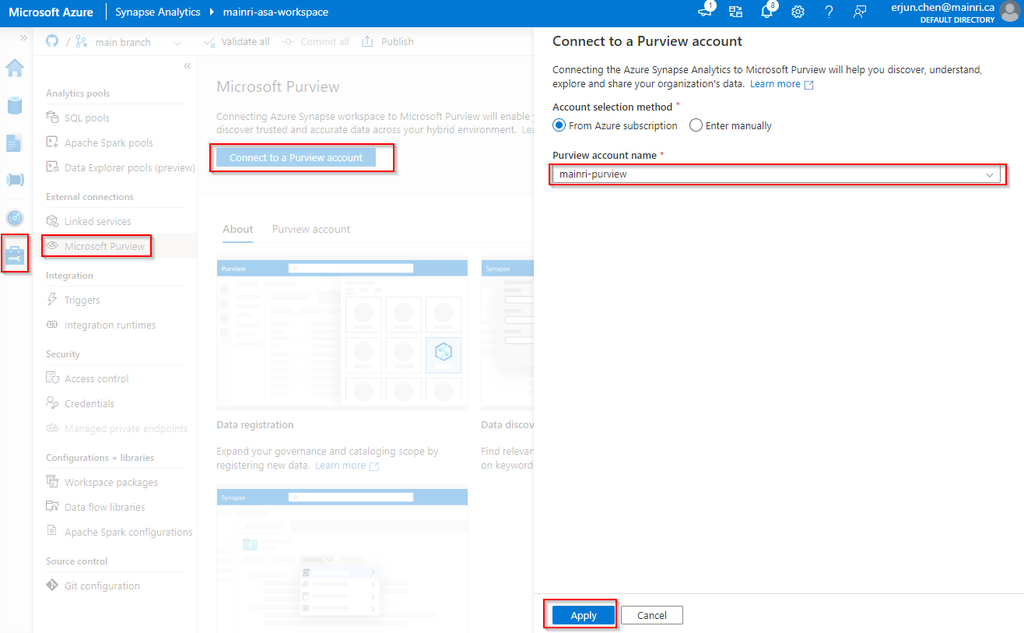
Before you scan Synapse workspace, you need Azure Synapse Analytics connects Purview account.

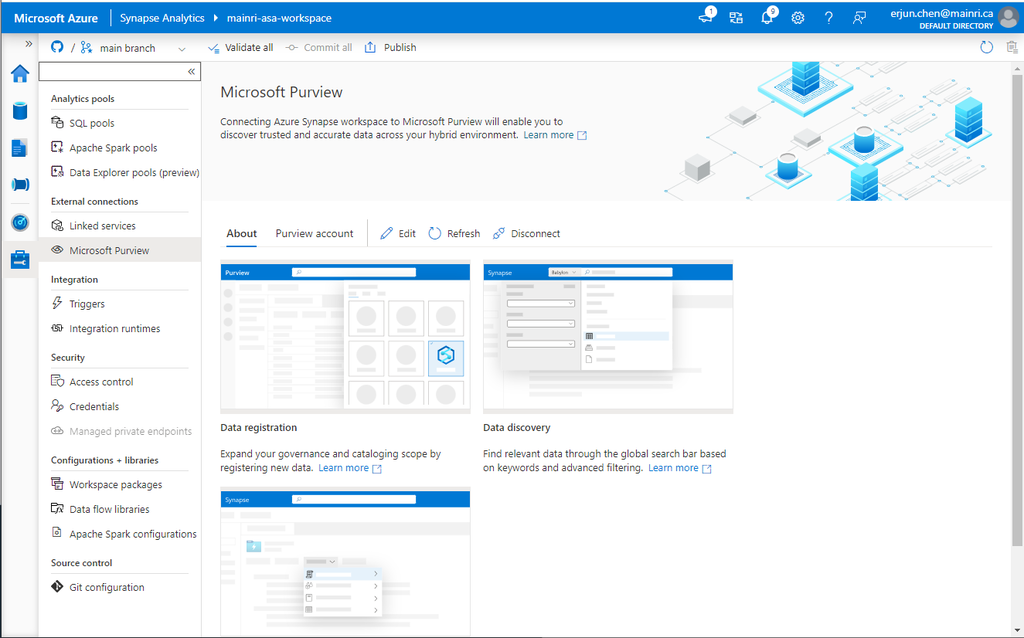
Azure Synapse Analytics connects to Purview account.

Synapse Studio > Manage > External connection > Microsoft Purview

after you click “apply” you will see:

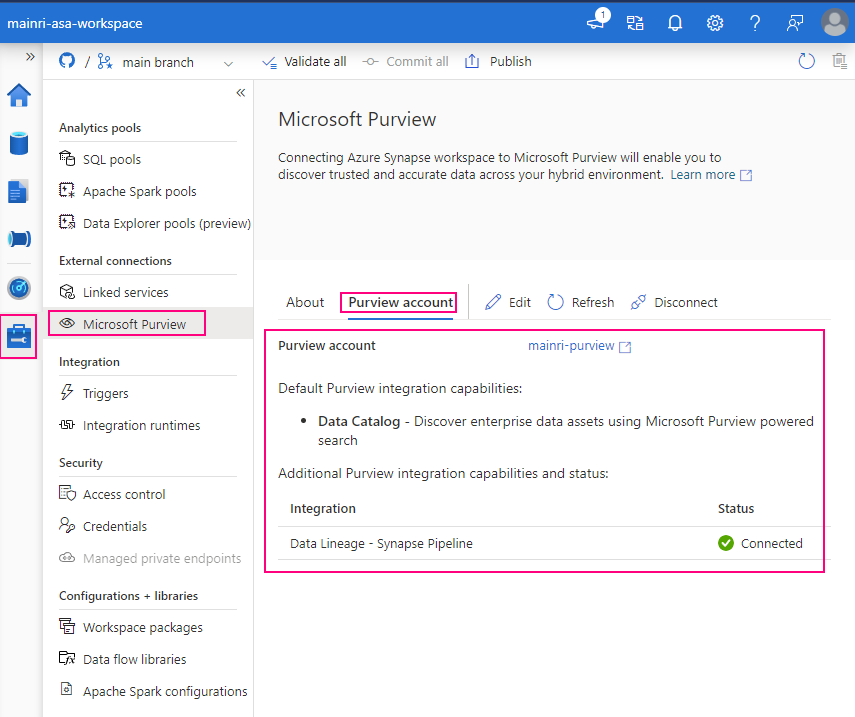
Select “Purview account” tag

Successfully connected with Purview.

To validation, we check what we have in ADLS and SQL Database.

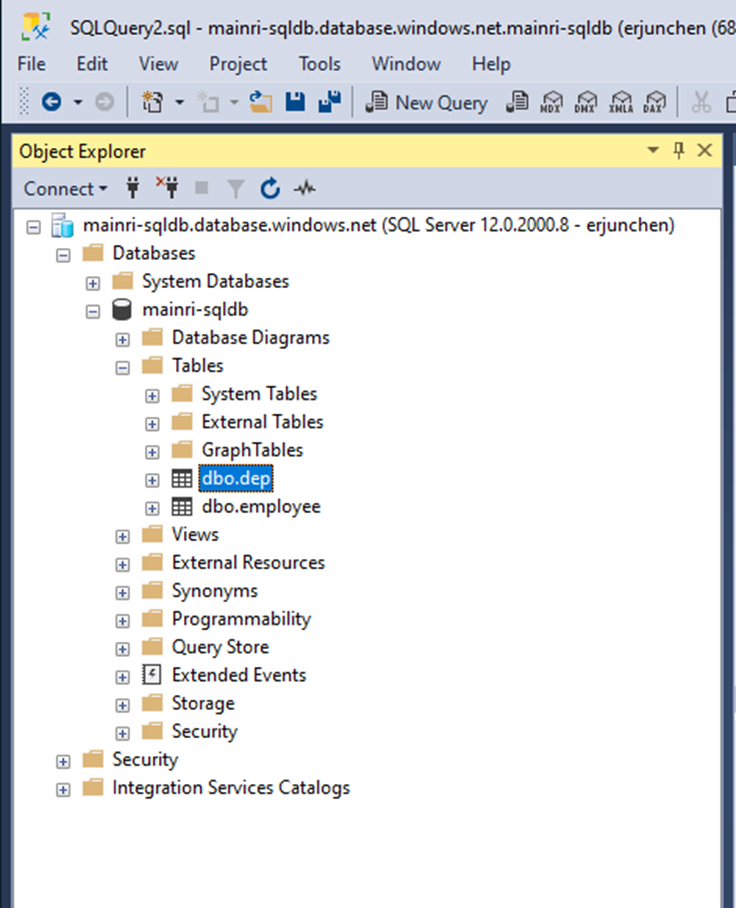
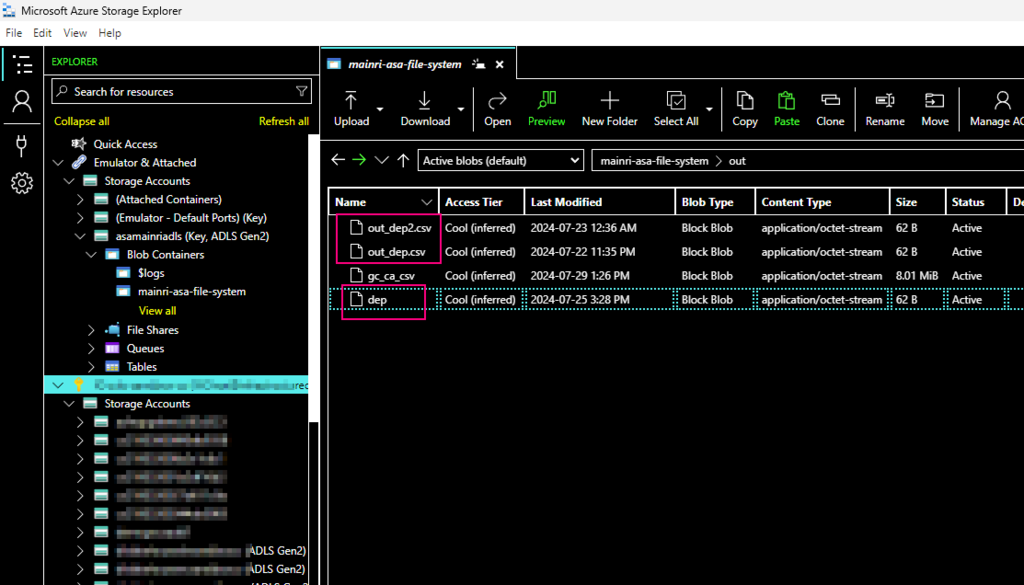
We have in ADLS and Azure SQL Database. There are one table called “dep” in the SQL Database, 3 files in the ADLS.

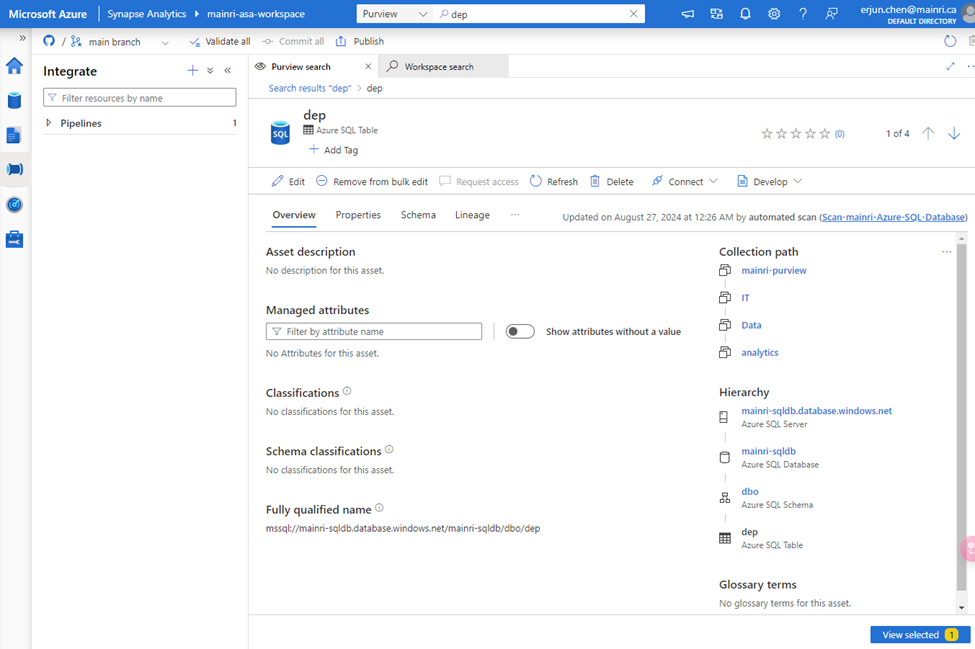
There is one table in SQL Database:

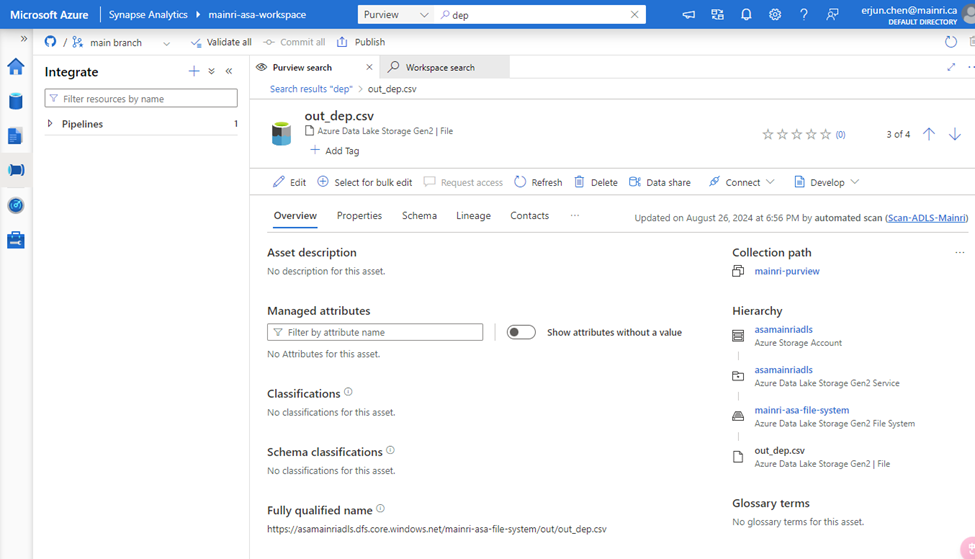
and there are 3 file related the key word “dep” in ADLS,

using Azure Storage Explore:

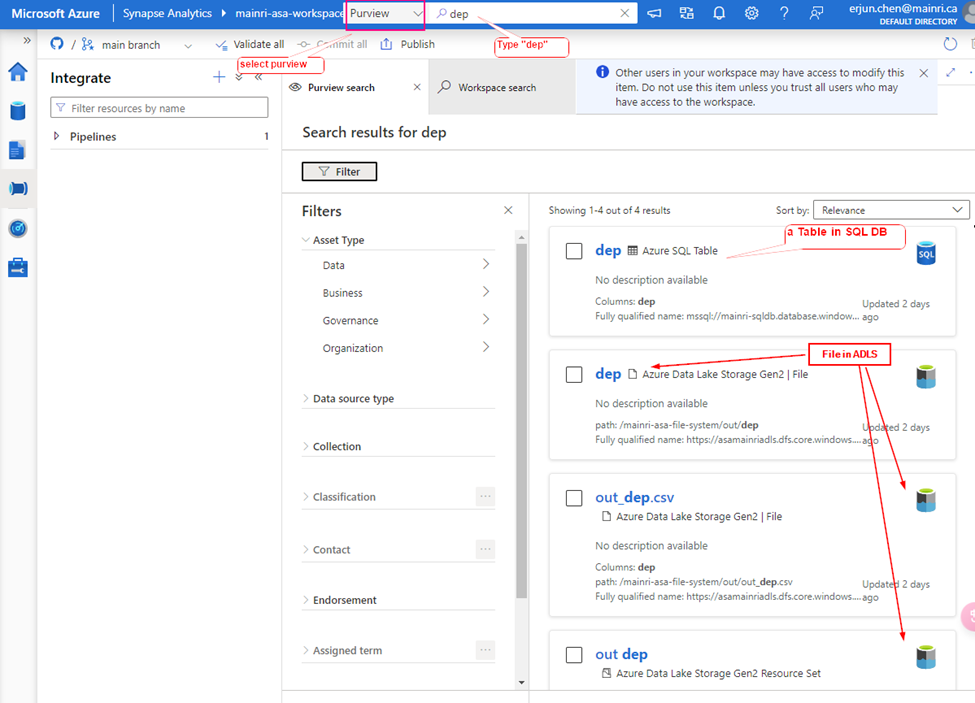
Let’s search “dep” the key from Synapse Studio.

Synapse Studio > from the dropdown > select “Purview” > type “dep”

We find out the objects related to the key words – “dep”

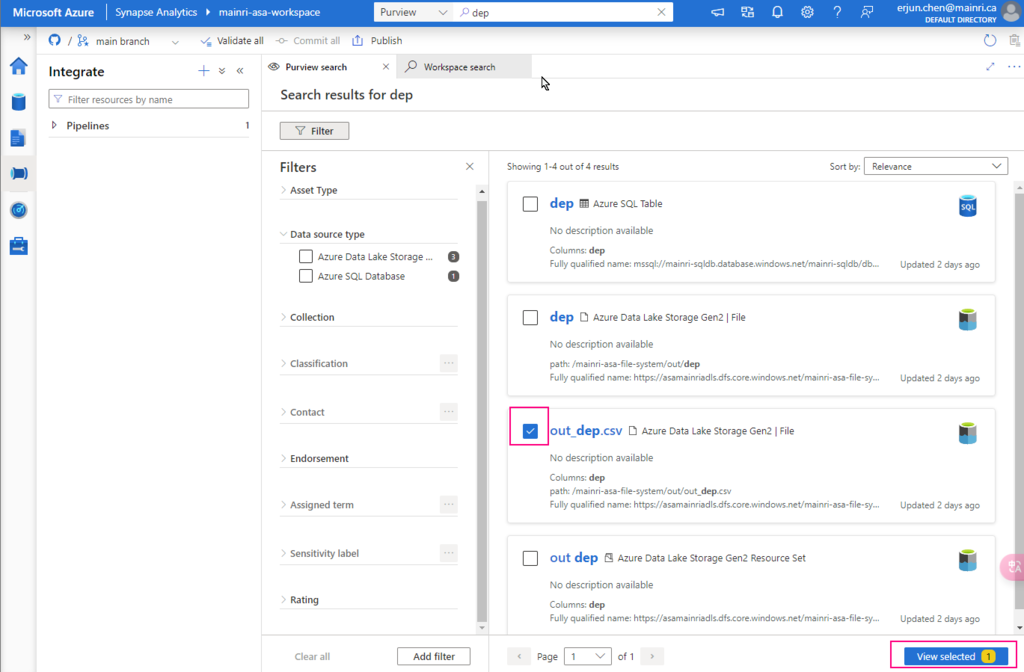
 A table in SQL Database, 3 files in ADLS.

Great, we successfully connected to Purview.

choose either of them to view in detail

There are so many powerful and interesting functions regarding the “Searching”, “discovering”, we will talk about them late.  

Now, let’s switch to Purview studio.

Register Synapse Analytics Workspace

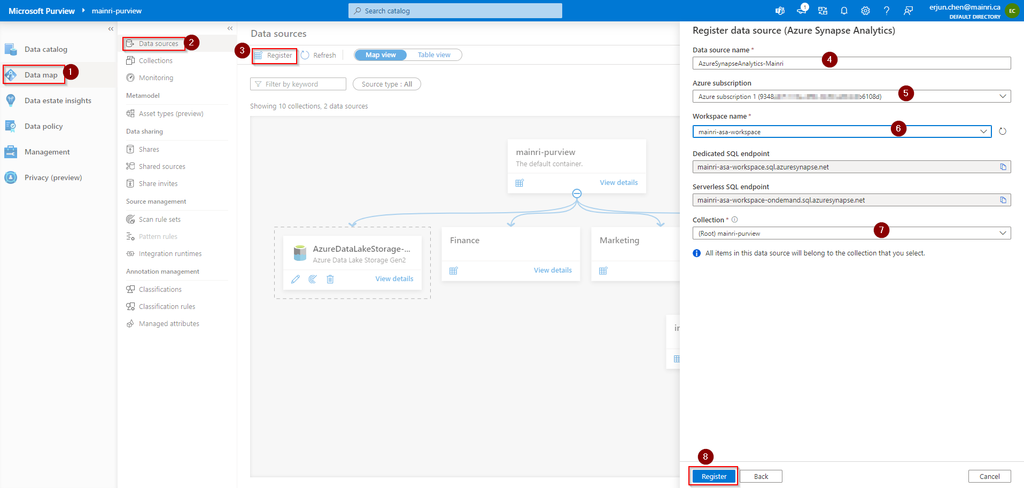
Assuming you have created Collects, we directly jump into register Azure Synapse Analytics Workspace (ASA).

Purview Studio > Data Map > Data Source

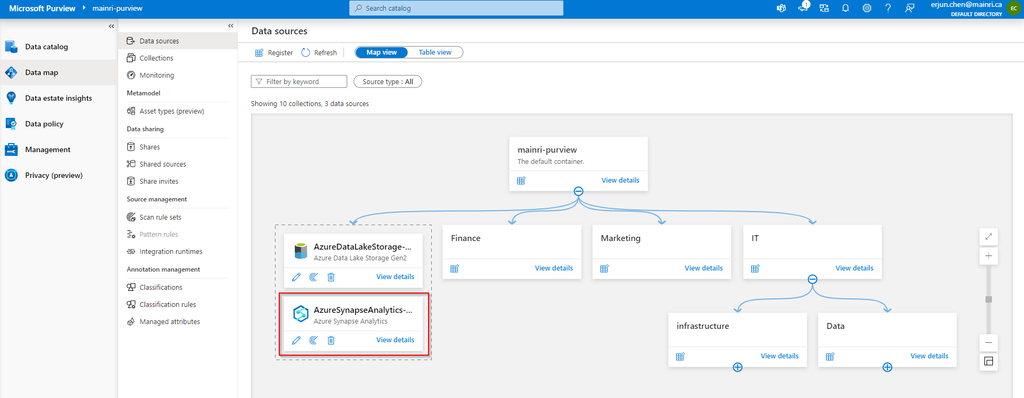
After filling in above values, click “register”, you will this

After registering the sources where your data assets are stored, you can scan each source to catalog the assets it contains. You can scan each source interactively, and you can schedule period scans to keep the data map up to date.

You may or may not see this error or alerts:

Read:

“Failed to load serverless databases from Synapse workspace, please give the managed identity of the Microsoft Purview account permissions or apply the correct credential to enumerate serverless databases.”

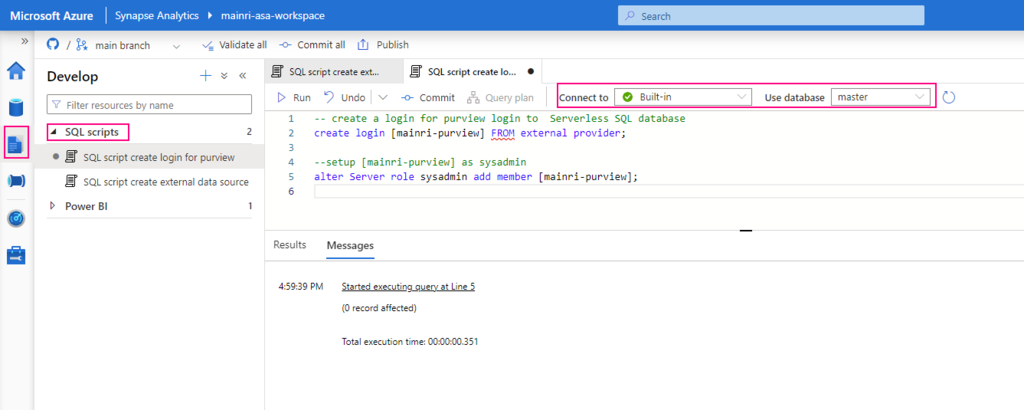
If you see it, you need create a login account for purview account to connect Serverless SQL:

Create Serverless SQL database login account for Purview

— create a login for purview login to  Serverless SQL database


create login [mainri-purview] from external provider;

Synapse Studio > Develop > SQL Script >
select: “connect to Built-in” and use database “master”

Grant purview login account Sysadmin privilege

Add managed identity to the storage account

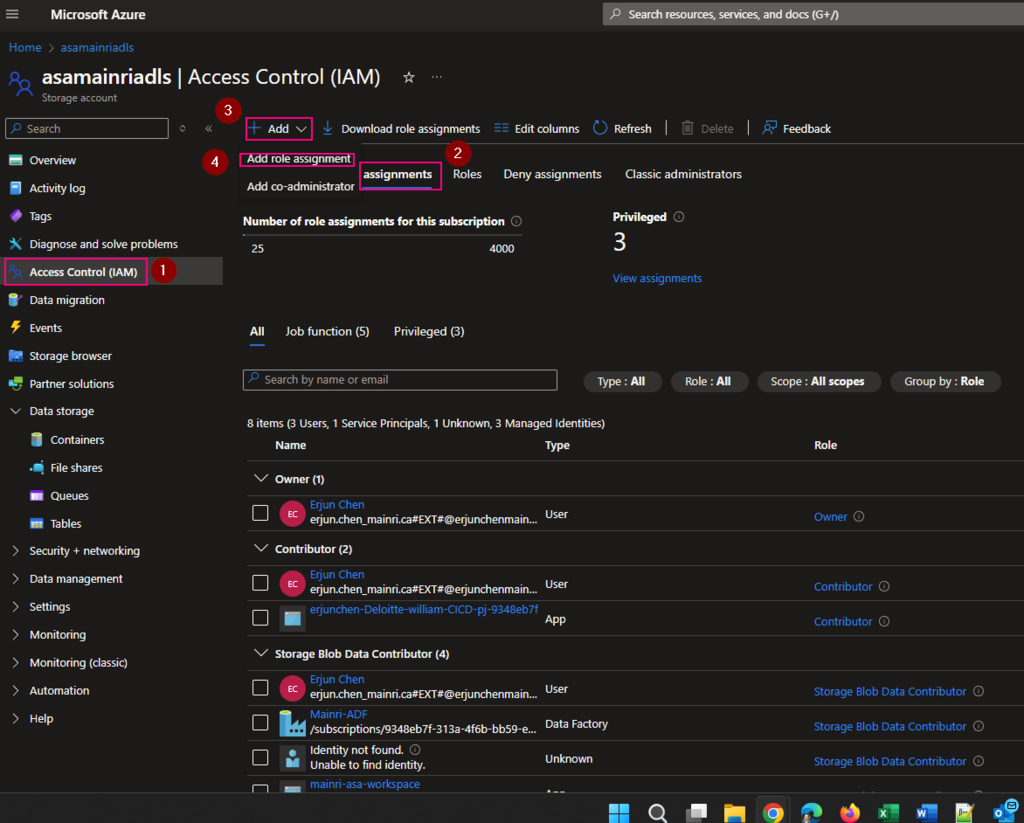
Then, add managed identity to the storage account.

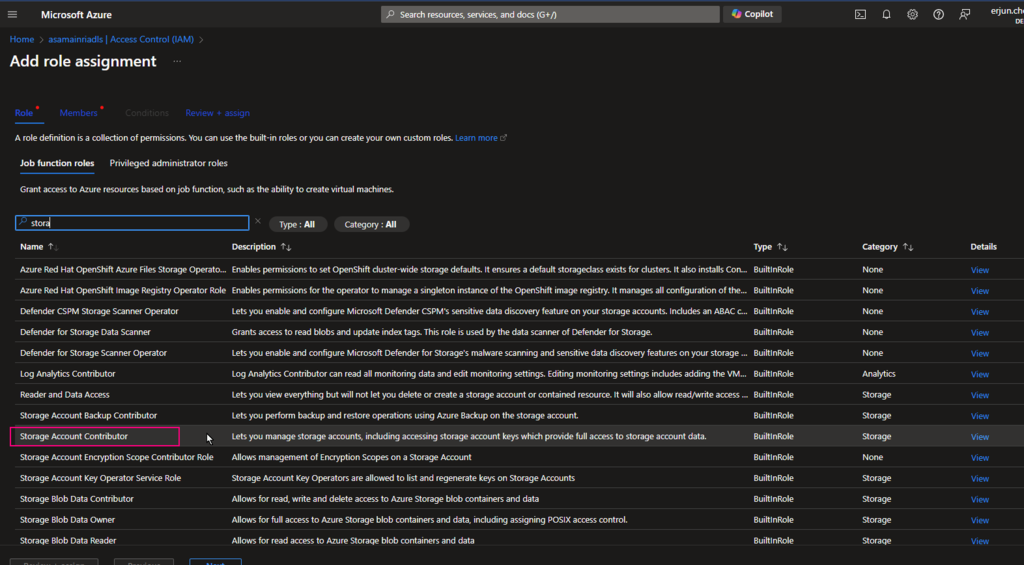
From Azure portal > storage account > Access Control (IAM)

Select Role assignments tag

Add role assignments

Give the “Storage Account Contributor” role

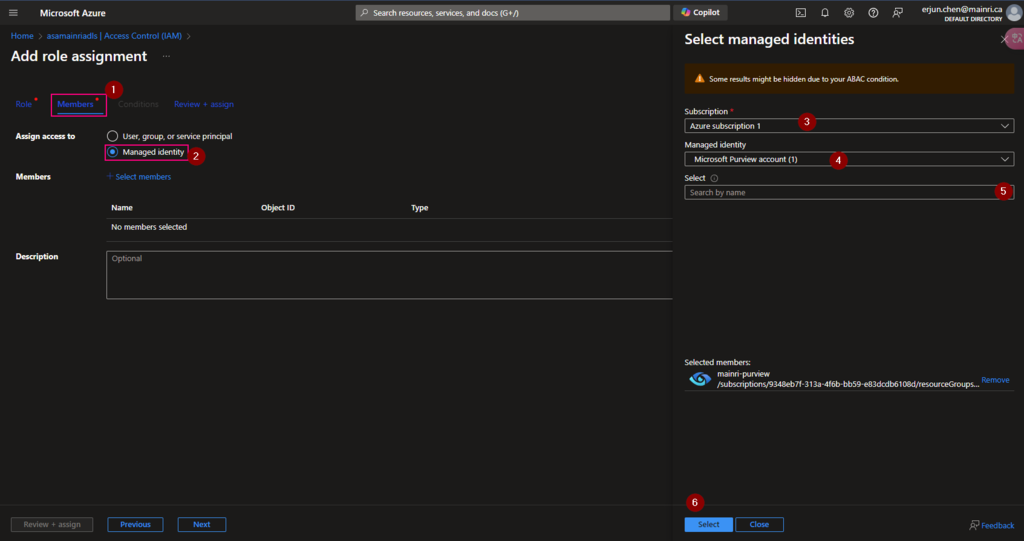
Then, select “Member” tag:

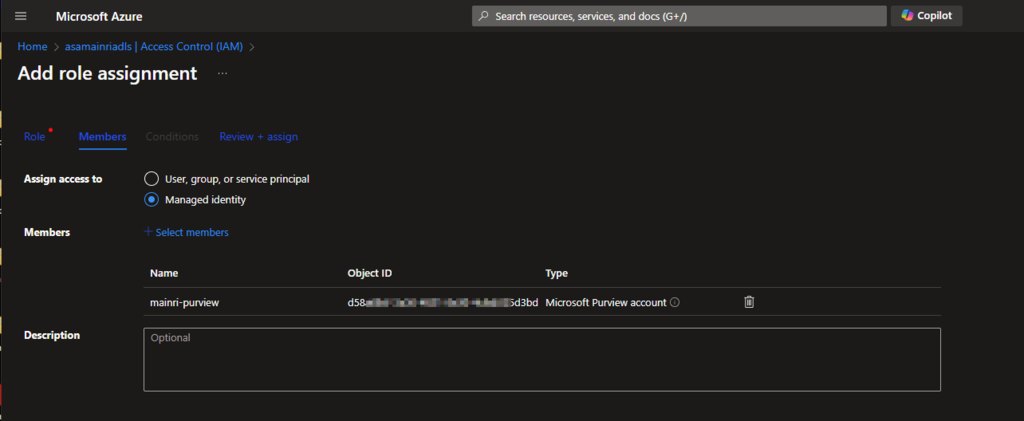
Select “Managed Identity”, fill in all properties, Find out the purview account

Now, the role assignments added.

If you have dedicated SQL pool, we need repeat these.

  • Create Serverless SQL database login account for Purview
  • Grant purview login account Sysadmin privilege

Let’s test the connection

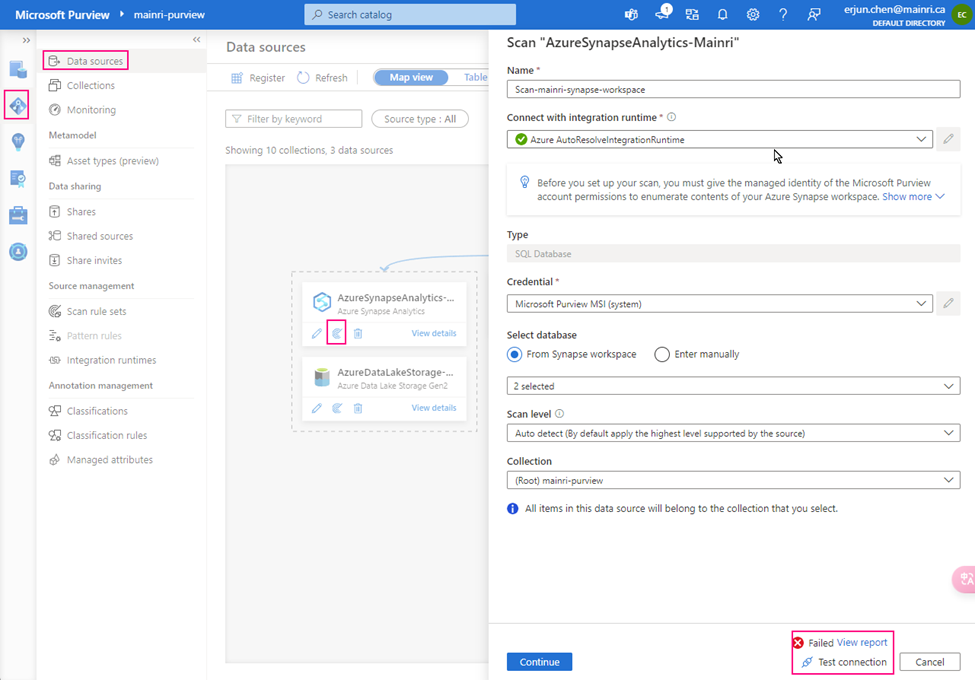
From Purview studio > scan

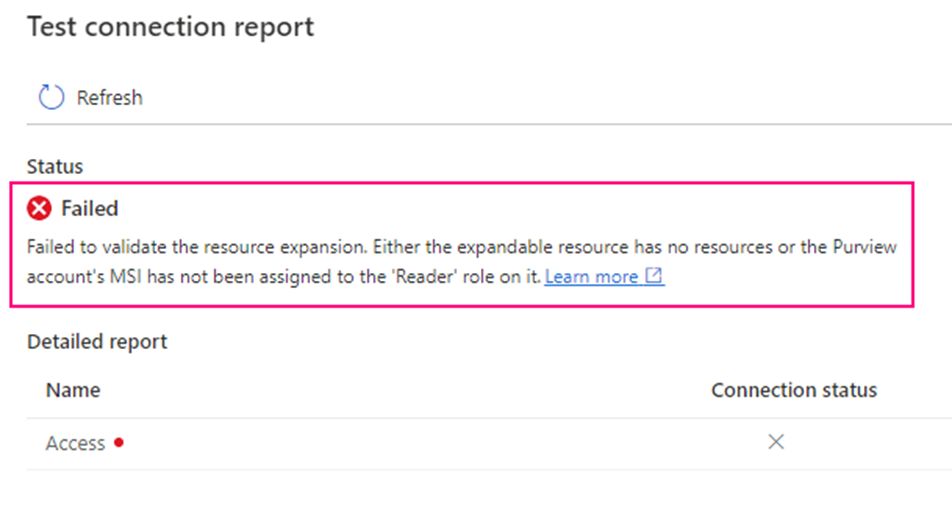
we got failed alert.

“Failed to validate the resource expansion. Either the expandable resource has no resources or the Purview account’s MSI has not been assigned to the ‘Reader’ role on it.”

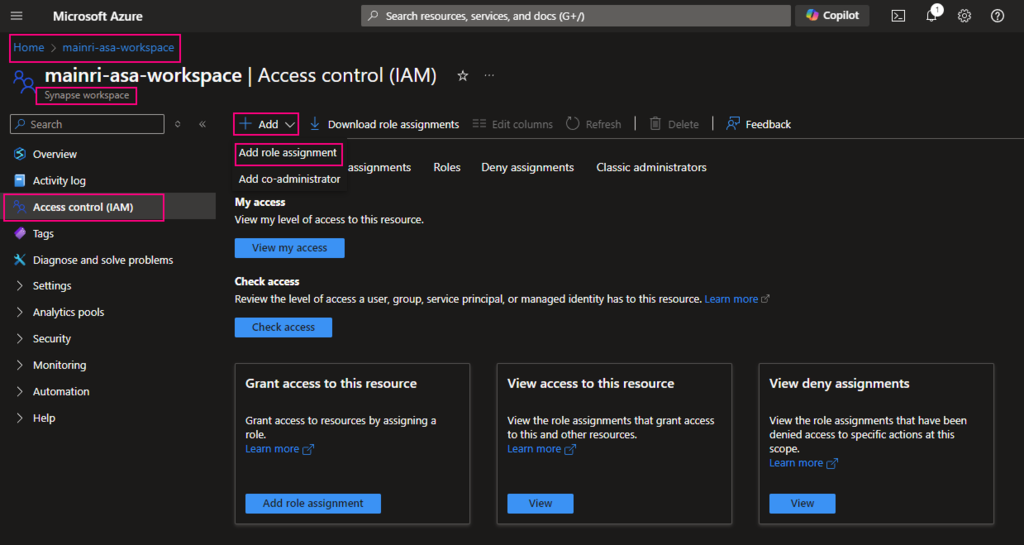
Go back to Synapse portal

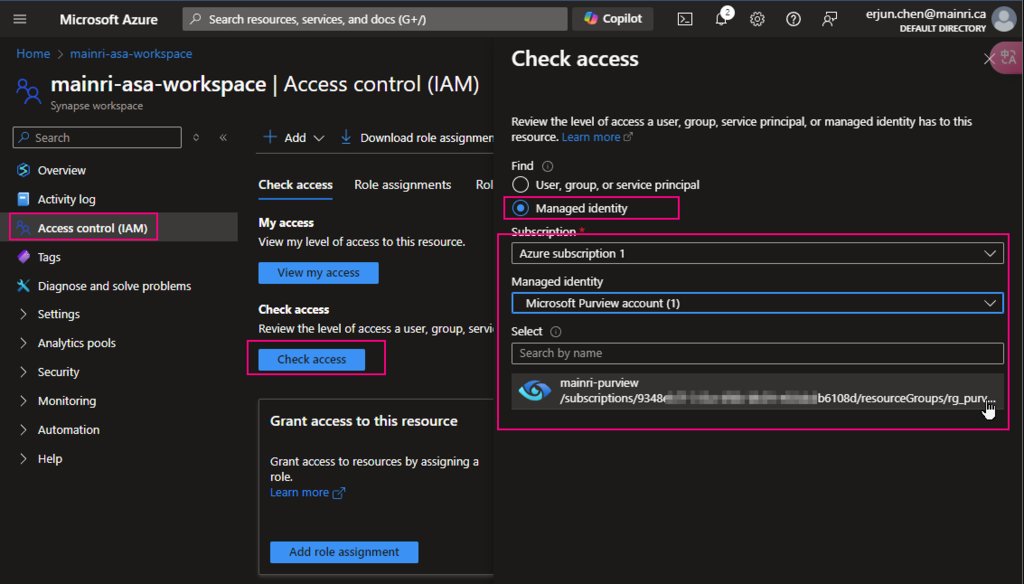
Azure Portal > Synapse workspace > Access control (IAM) > Add role assignments

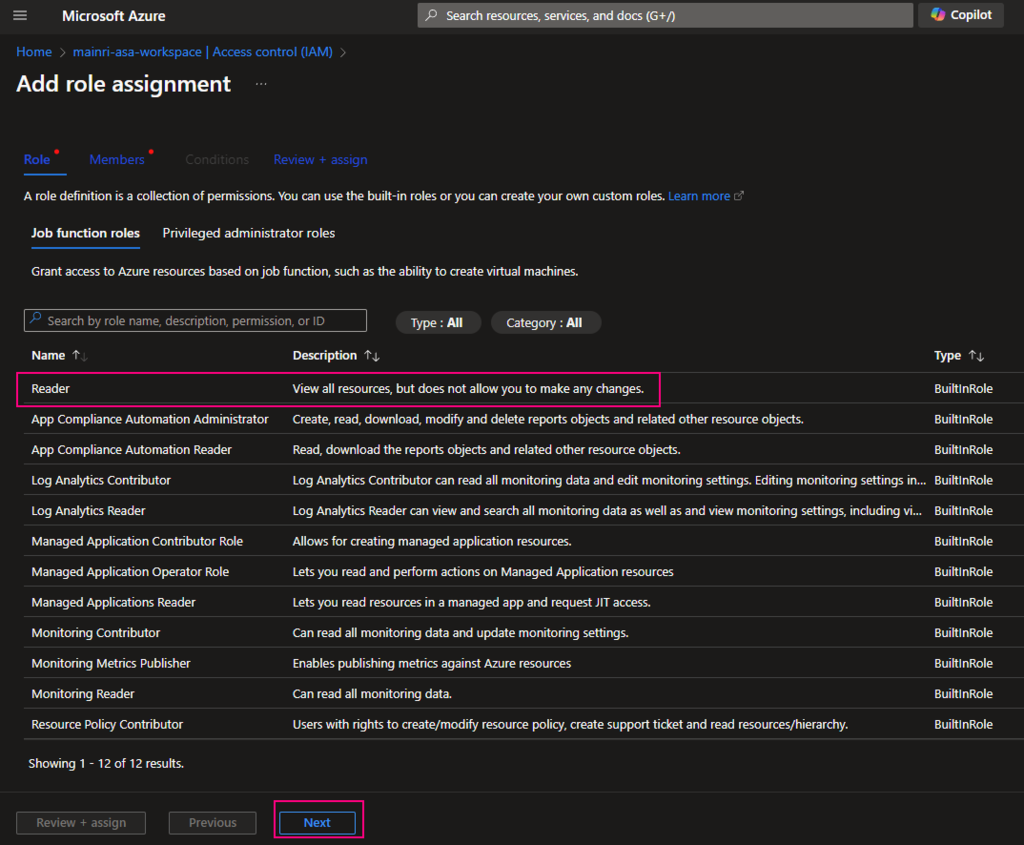
add “read” role

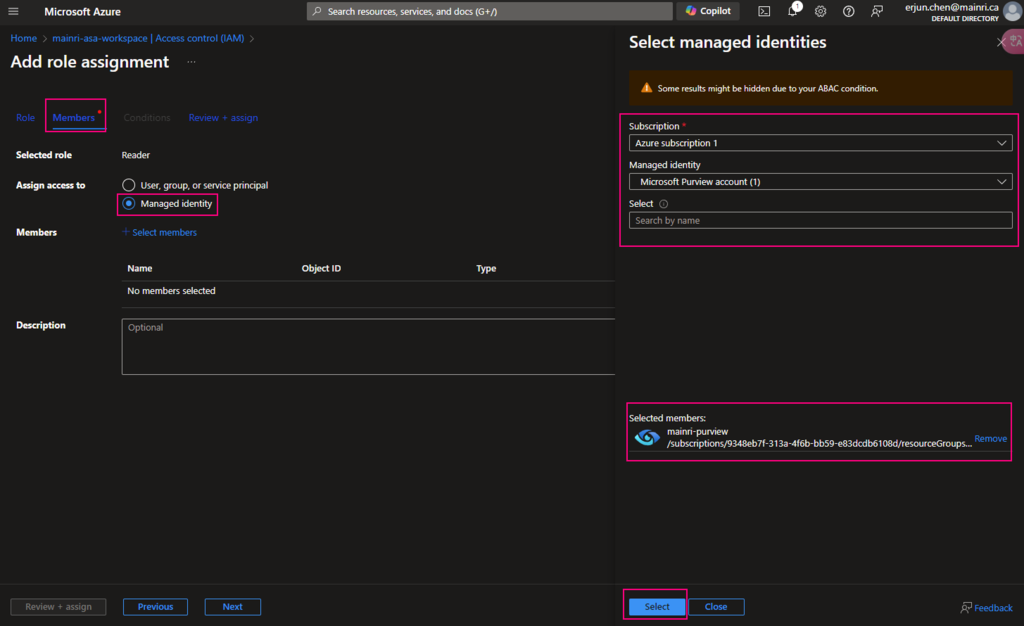
Add “managed Identity” member – Purview

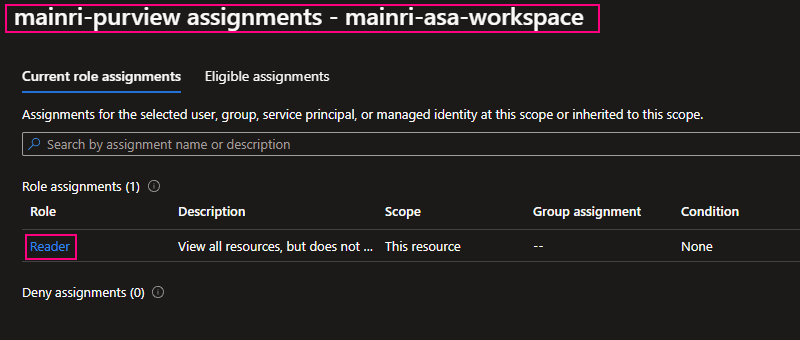
Check Purview access,

we can see Mainri-purview assignments – mainri-asa-workspace has “read” role (my Synapse workspace named “mainri-asa-workspace”)

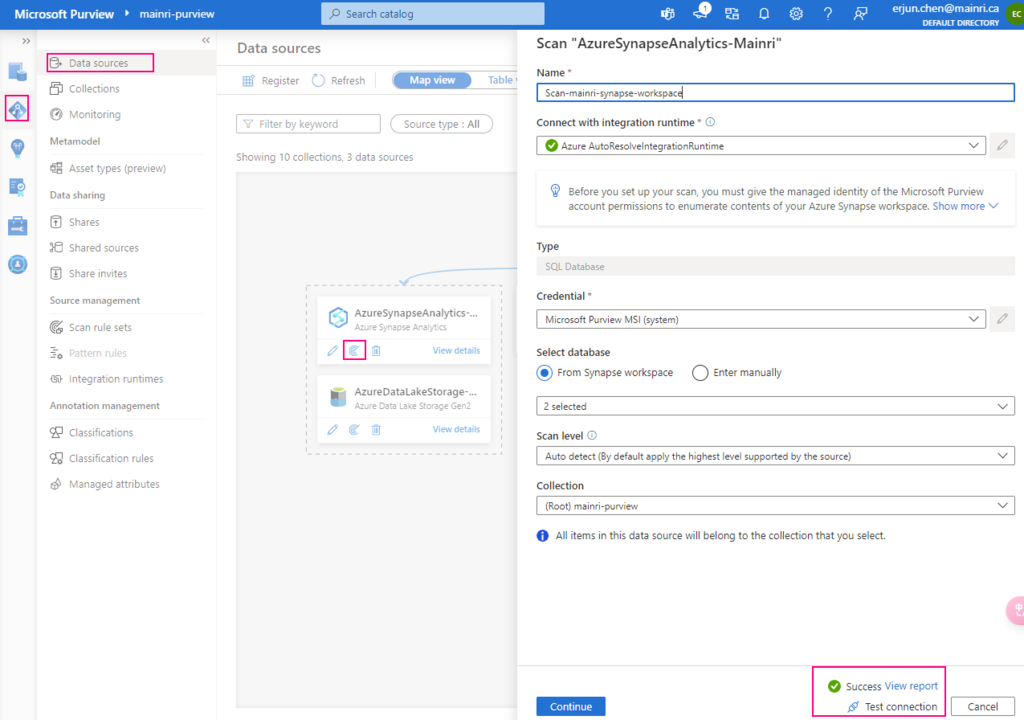
Go to Purview Studio test connection again.

Great! We successful connect to Synapse workspace.

We have gotten access to SQL; we’ve got access to storage account. we have add “read” role assignment to Purview

Alright, we are ready to go – scan.

Scan Synapse workspace

After registering the sources where your data assets are stored, you can scan each source to catalog the assets it contains. You can scan each source interactively, and you can schedule period scans to keep the data map up to date.

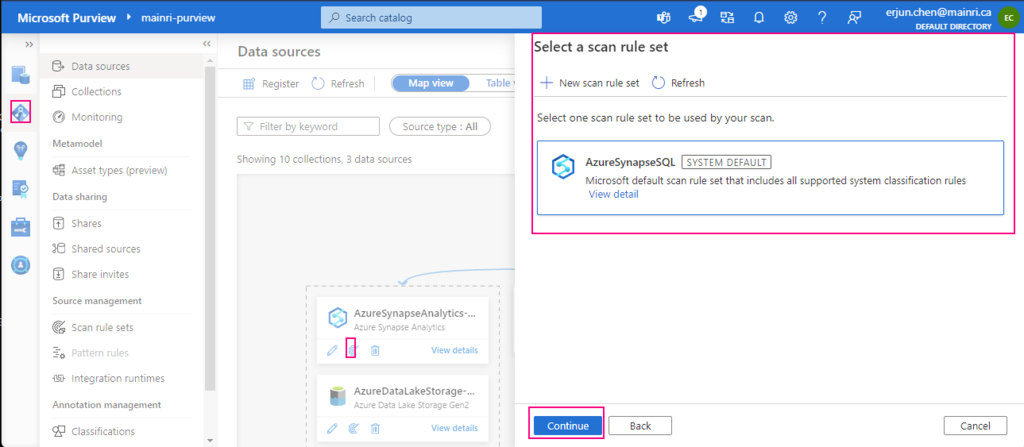
Select a scan rule set

If you like, you are able to add even more new scan rule set at this step.

For this demonstration, we select default scan rule set.

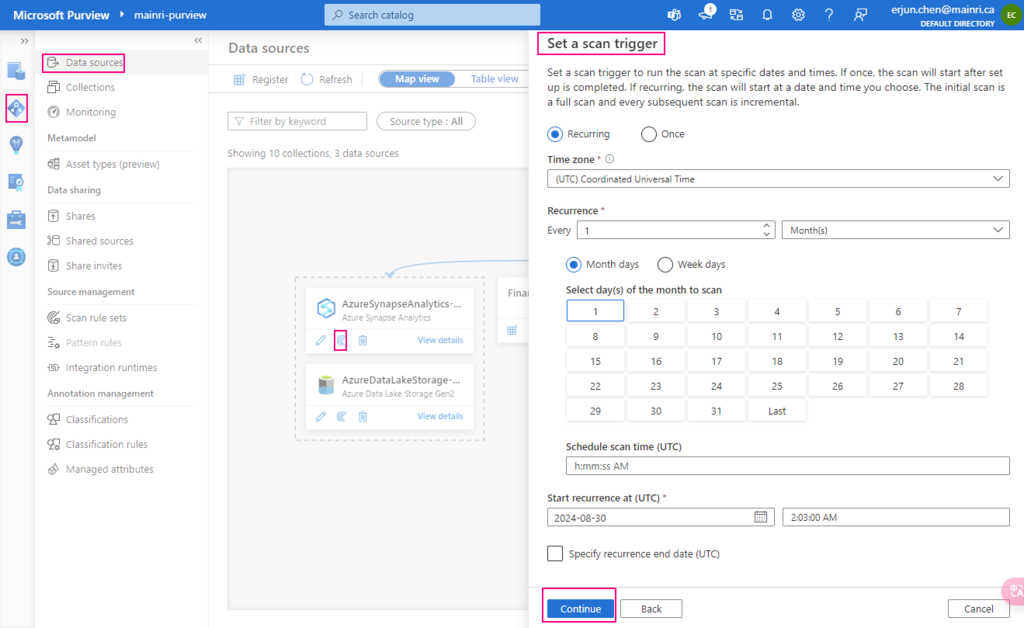
Set a scan trigger

We ca either scan once or schedule and recurring scan on schedule.

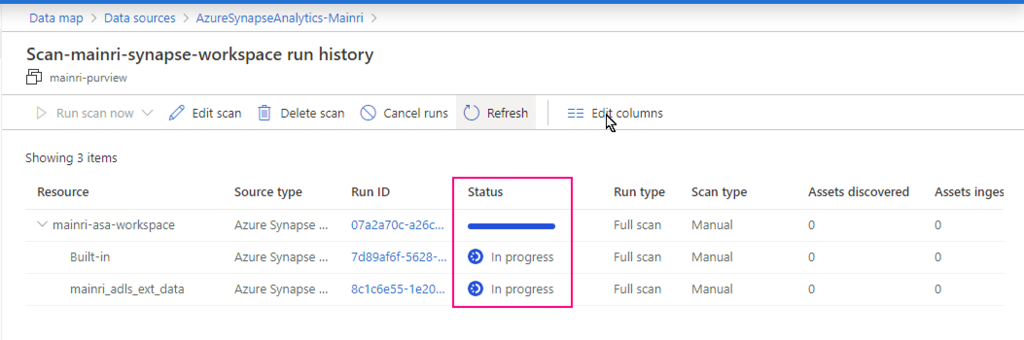
Monitoring the scan progress ….

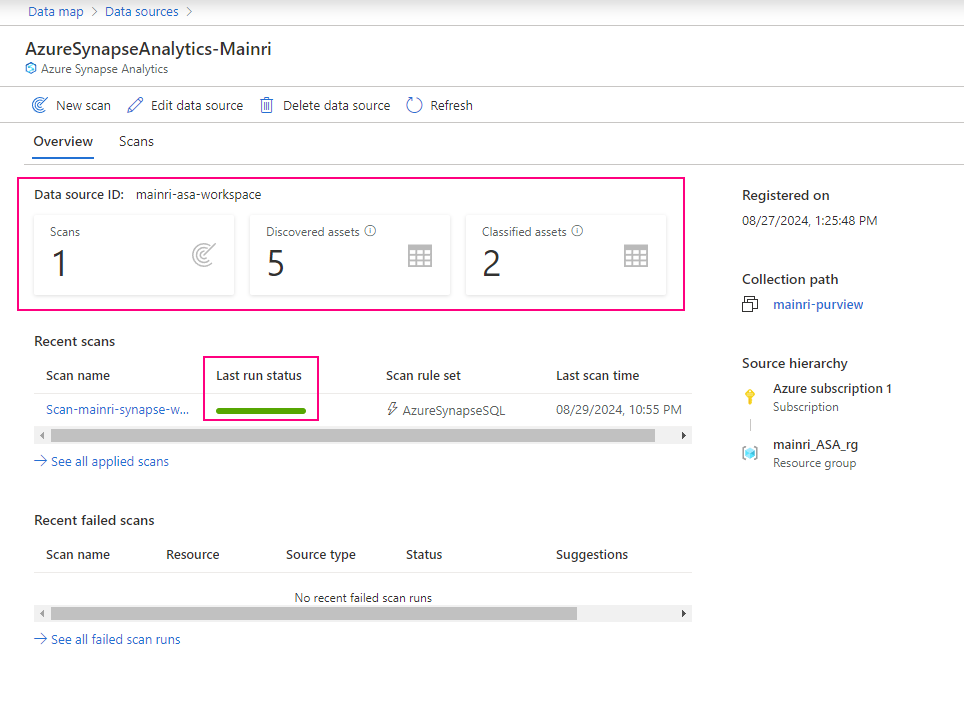
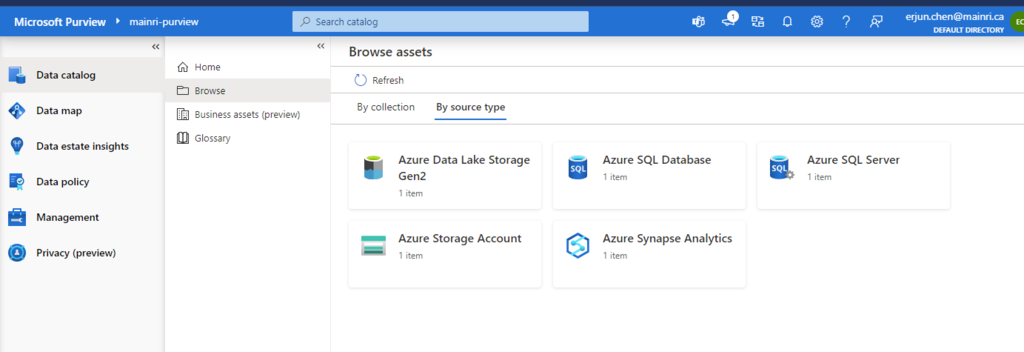
Once the process done, we will see this:

Alright, we have done the Purview for scanning Azure Synapse Workspace. Now, we have those source in our Azure purview.

Next step: Day 7 – Day 7: Permission and Roles, Business Glossary and Collections Access Control in Purview

Please do not hesitate to contact me if you have any questions at William . chen @ mainri.ca

(remove all space from the email account 😊)