Unity Catalog: Data Access Control with Databricks Unity Catalog

This article explains how to control access to data and other objects in Unity Catalog.

Principals

Entities that can be granted permissions (e.g., users, groups, or roles).

Example: A user like alice@company.com or a group like DataEngineers can be considered principals.

Privileges

The specific rights or actions that a principal can perform on a securable object.

  • SELECT: Read data from a table or view.
  • INSERT: Add data to a table.
  • UPDATE: Modify existing data.
  • DELETE: Remove data.
  • ALL PRIVILEGES: Grants all possible actions.

Example: GRANT SELECT ON TABLE transactions TO DataScientists;

Securable Objects

The resources or entities (e.g., databases, tables, schemas) on which permissions are applied.

  • Catalogs (logical collections of databases).
  • Schemas (collections of tables or views within a catalog).
  • Tables (structured data in rows and columns).
  • Views, Functions, External Locations, etc.

Example: In Unity Catalog, the catalog named main, a schema like sales_db, and a table called transactions are all securable objects.

ConceptPrincipalsPrivilegesSecurable Objects
DefinitionEntities that can be granted permissions (e.g., users, groups, or roles).The specific rights or actions that a principal can perform on a securable object.The resources or entities (e.g., databases, tables, schemas) on which permissions are applied.
Examples– Users (e.g., alice, bob)
– Groups (e.g., DataEngineers)
– Service Principals
– SELECT (read data)
– INSERT (write data)
– ALL PRIVILEGES (full access)
– Catalog
– Schema
– Table
– External Location
ScopeDefines who can access or perform actions on resources.Defines what actions are allowed for principals on securable objects.Defines where privileges apply (i.e., what resources are being accessed).
Roles in Security ModelPrincipals represent users, groups, or roles that need permissions to access objects.Privileges are permissions or grants that specify the actions a principal can perform.Securable objects are the data resources and define the scope of where privileges are applied.
GranularityGranularity depends on the level of access required for individual users or groups.Granular permissions such as SELECT, INSERT, UPDATE, DELETE, or even specific column-level access.Granular levels of objects from the entire catalog down to individual tables or columns.
Hierarchy– Principals can be individual users, but more commonly, groups or roles are used to simplify management.– Privileges can be granted at various levels (catalog, schema, table) and can be inherited from parent objects.– Securable objects are structured hierarchically: catalogs contain schemas, which contain tables, etc.
Management– Principals are typically managed by identity providers (e.g., Azure Entra ID, Databricks users, Active Directory).– Privileges are managed through SQL commands like GRANT or REVOKE in systems like Unity Catalog.– Securable objects are resources like catalogs, schemas, and tables that need to be protected with permissions.
Databricks Example– User: databricks-user
– Group: DataScientists
– GRANT SELECT ON TABLE sales TO DataScientists`;Catalog: main
Schema: sales_db
Table: transactions
Side by side Comparison

Securable objects in Unity Catalog are hierarchical, and privileges are inherited downward. The highest level object that privileges are inherited from is the catalog. This means that granting a privilege on a catalog or schema automatically grants the privilege to all current and future objects within the catalog or schema.

Show grants on objects in a Unity Catalog metastore

Catalog Explorer

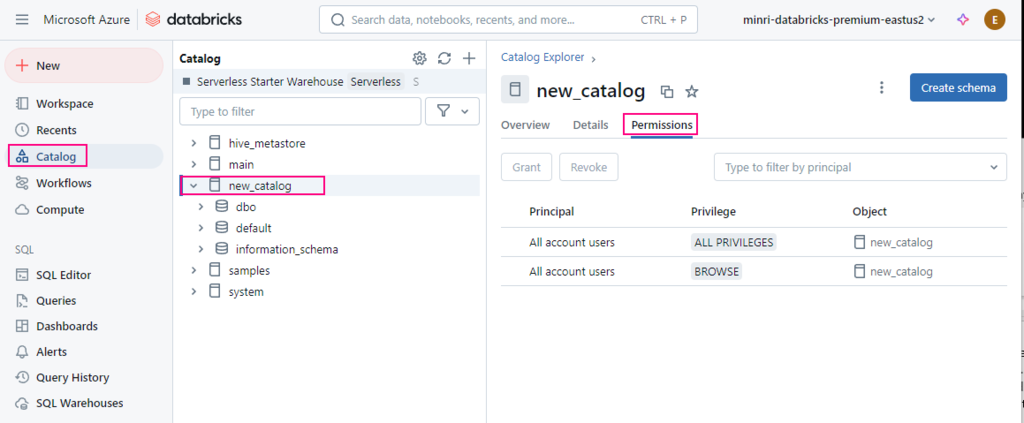
  1. In your Azure Databricks workspace, click  Catalog.
  2. Select the object, such as a catalog, schema, table, or view.
  3. Go to the Permissions tab.

SQL

Run the following SQL command in a notebook or SQL query editor. You can show grants on a specific principal, or you can show all grants on a securable object.

SHOW GRANTS  [principal]   ON  <securable-type> <securable-name>

For example, the following command shows all grants on a schema named default in the parent catalog named main:

SHOW GRANTS ON SCHEMA main.default;

Please do not hesitate to contact me if you have any questions at William . chen @ mainri.ca

(remove all space from the email account 😊)

Appendix:
MS: Manage privileges in Unity Catalog
MS: Unity Catalog privileges and securable objects

Unity Catalog in Databricks

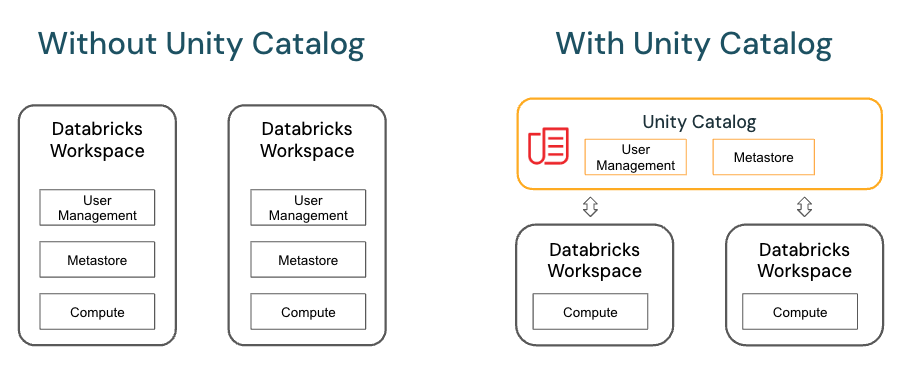
Unity Catalog is a fine-grained data governance solution for data present in a Data Lake for managing data governance, access control, and centralizing metadata across multiple workspaces. Unity Catalog provides centralized access control, auditing, lineage, and data discovery capabilities across Azure Databricks workspaces. It brings a new layer of data management and security to your Databricks environment

Unity Catalog provides centralized access control, auditing, lineage, and data discovery capabilities across Azure Databricks workspaces.

Key features of Unity Catalog include

  • Define once, secure everywhere: Unity Catalog offers a single place to administer data access policies that apply across all workspaces.
  • Standards-compliant security model: Unity Catalog’s security model is based on standard ANSI SQL and allows administrators to grant permissions in their existing data lake using familiar syntax, at the level of catalogs, schemas (also called databases), tables, and views.
  • Built-in auditing and lineage: Unity Catalog automatically captures user-level audit logs that record access to your data. Unity Catalog also captures lineage data that tracks how data assets are created and used across all languages.
  • Data discovery: Unity Catalog lets you tag and document data assets, and provides a search interface to help data consumers find data.
  • System tables (Public Preview): Unity Catalog lets you easily access and query your account’s operational data, including audit logs, billable usage, and lineage.

Unity Catalog object model

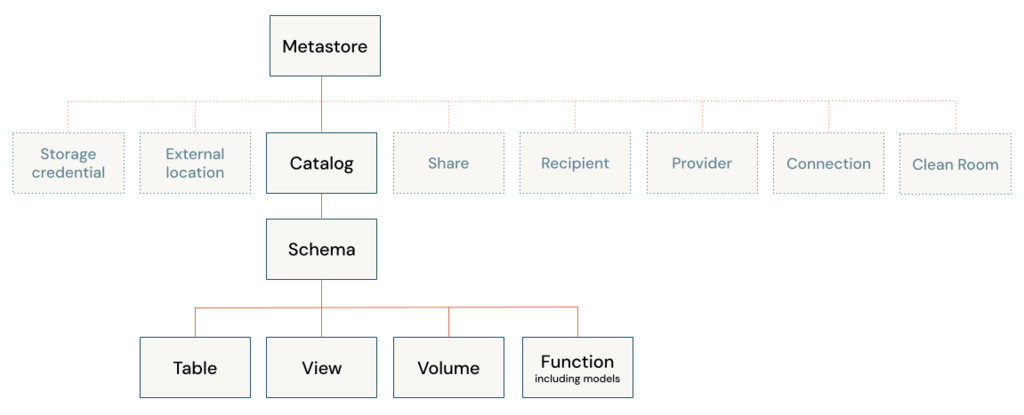
The hierarchy of database objects in any Unity Catalog metastore is divided into three levels, represented as a three-level namespace (catalog.schema.table-etc) 

Metastore

The metastore is the top-level container for metadata in Unity Catalog. It registers metadata about data and AI assets and the permissions that govern access to them. For a workspace to use Unity Catalog, it must have a Unity Catalog metastore attached.

Object hierarchy in the metastore

In a Unity Catalog metastore, the three-level database object hierarchy consists of catalogs that contain schemas, which in turn contain data and AI objects, like tables and models.

Level one: Catalogs are used to organize your data assets and are typically used as the top level in your data isolation scheme.

Level two: Schemas (also known as databases) contain tables, views, volumes, AI models, and functions.

Level three: Volumes, Tables, Views, Functions, Models (AI models packaged with MLflow)

Working with database objects in Unity Catalog

Working with database objects in Unity Catalog is very similar to working with database objects that are registered in a Hive metastore, with the exception that a Hive metastore doesn’t include catalogs in the object namespace. You can use familiar ANSI syntax to create database objects, manage database objects, manage permissions, and work with data in Unity Catalog. You can also create database objects, manage database objects, and manage permissions on database objects using the Catalog Explorer UI.

Granting and revoking access to database objects

You can grant and revoke access to securable objects at any level in the hierarchy, including the metastore itself. Access to an object implicitly grants the same access to all children of that object, unless access is revoked.


GRANT CREATE TABLE ON SCHEMA mycatalog.myschema TO `finance-team`;

Please do not hesitate to contact me if you have any questions at William . chen @ mainri.ca

(remove all space from the email account 😊)

Using sp_MSforeachdb to Search for Objects Across All Databases

You are working on a project that requires migrating legacy stuffs from old environment to a new one, and requirement says upgrade business logic to latest. Unfortunately, not enough and clearly documents for you to refer. You did not even know an object where it is since there are so many databases resident in the same server, so many tables, so many views, stored procedure, user defined functions… etc. It is hard to find out the legacy business logics.

sp_MSforeachdb

The sp_MSforeachdb procedure is an undocumented procedure that allows you to run the same command against all databases. There are several ways to get creative with using this command and we will cover these in the examples below. This can be used to select data, update data and even create database objects. You can use the sp_MSforeachdb stored procedure to search for objects by their name across all databases:

EXEC sp_MSforeachdb
'USE [?];
SELECT ''?'' AS DatabaseName, name AS ObjectName
, type_desc AS ObjectType
, Type_desc as object_Desc
, Create_date
, Modify_date
FROM sys.objects
WHERE name = ''YourObjectName'';';

Replace ‘YourObjectName’ with the actual name of the object you’re searching for (table, view, stored procedure, etc.).

The type_desc column will tell you the type of the object (e.g., USER_TABLE, VIEW, SQL_STORED_PROCEDURE, etc.).

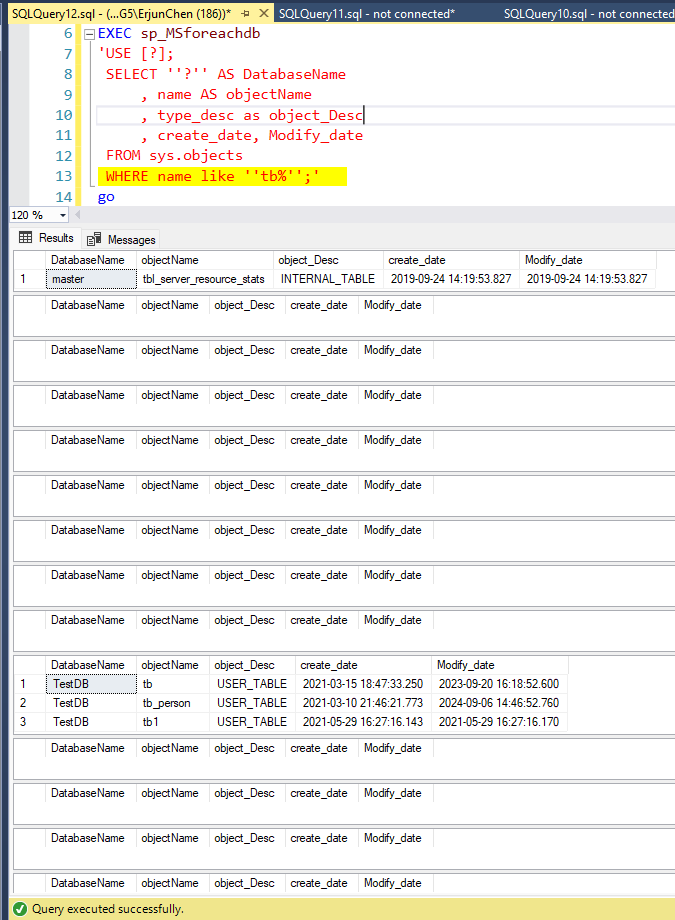
For example, find out the “tb” prefix objects

EXEC sp_MSforeachdb
'USE [?];
SELECT ''?'' AS DatabaseName
, name AS objectName
, type_desc as object_Desc
, create_date, Modify_date
FROM sys.objects
WHERE name like ''tb%'';'
go

Alternative – Loop Through Databases Using a Cursor

If sp_MSforeachdb is not available, you can use a cursor to loop through each database and search for the object:

DECLARE @DBName NVARCHAR(255);
DECLARE @SQL NVARCHAR(MAX);

DECLARE DB_Cursor CURSOR FOR
SELECT name
FROM sys.databases
WHERE state = 0;  -- Only look in online databases

OPEN DB_Cursor;
FETCH NEXT FROM DB_Cursor INTO @DBName;

WHILE @@FETCH_STATUS = 0
BEGIN
    SET @SQL = 
    'USE [' + @DBName + ']; 
     IF EXISTS (SELECT 1 FROM sys.objects WHERE name = ''YourObjectName'')
     BEGIN
         SELECT ''' + @DBName + ''' AS DatabaseName, name AS ObjectName, type_desc AS ObjectType
         FROM sys.objects
         WHERE name = ''YourObjectName'';
     END';

    EXEC sp_executesql @SQL;

    FETCH NEXT FROM DB_Cursor INTO @DBName;
END;

CLOSE DB_Cursor;
DEALLOCATE DB_Cursor;


You can modify the query to search for specific object types, such as tables or stored procedures:

Find the table

You can use the sp_MSforeachdb system stored procedure to search for the table across all databases.

EXEC sp_MSforeachdb 
'USE [?]; 
 SELECT ''?'' AS DatabaseName, name AS TableName 
 FROM sys.tables 
 WHERE name = ''YourTableName'';';

If sp_MSforeachdb is not enabled or available, you can use a cursor to loop through all databases and search for the table:

DECLARE @DBName NVARCHAR(255);
DECLARE @SQL NVARCHAR(MAX);

DECLARE DB_Cursor CURSOR FOR
SELECT name
FROM sys.databases
WHERE state = 0;  -- Only look in online databases

OPEN DB_Cursor;
FETCH NEXT FROM DB_Cursor INTO @DBName;

WHILE @@FETCH_STATUS = 0
BEGIN
    SET @SQL = 
    'USE [' + @DBName + ']; 
     IF EXISTS (SELECT 1 FROM sys.tables WHERE name = ''YourTableName'')
     BEGIN
         SELECT ''' + @DBName + ''' AS DatabaseName, name AS TableName
         FROM sys.tables
         WHERE name = ''YourTableName'';
     END';

    EXEC sp_executesql @SQL;

    FETCH NEXT FROM DB_Cursor INTO @DBName;
END;

CLOSE DB_Cursor;
DEALLOCATE DB_Cursor;

Find the View

You can use the sp_MSforeachdb system stored procedure to search for the view across all databases.

EXEC sp_MSforeachdb 
'USE [?];
SELECT ''?'' AS DatabaseName, name AS TableName
FROM sys.views
WHERE name = ''YourTableName'';';

Find the Stored Procedure

EXEC sp_MSforeachdb 
'USE [?]; 
 SELECT ''?'' AS DatabaseName, name AS ProcedureName 
 FROM sys.procedures 
 WHERE name = ''YourProcedureName'';';

Please do not hesitate to contact me if you have any questions at William . chen @ mainri.ca

(remove all space from the email account 😊)

Create External Data Sources in Synapse Serverless SQL

An external data source in Synapse serverless SQL is typically used to reference data stored outside of the SQL pool, such as in Azure Data Lake Storage (ADLS) or Blob Storage. This allows you to query data directly from these external sources using T-SQL.

There are different ways to create external data source. Using Synapse Studio UI, coding etc. the easiest way is to leverage Synapse Studio UI. But we had better know how to use code to create it since in some cases we have to use this way.

Here’s how to create an external data source in Synapse serverless SQL

Using Synapse Studio UI to create External Data Source

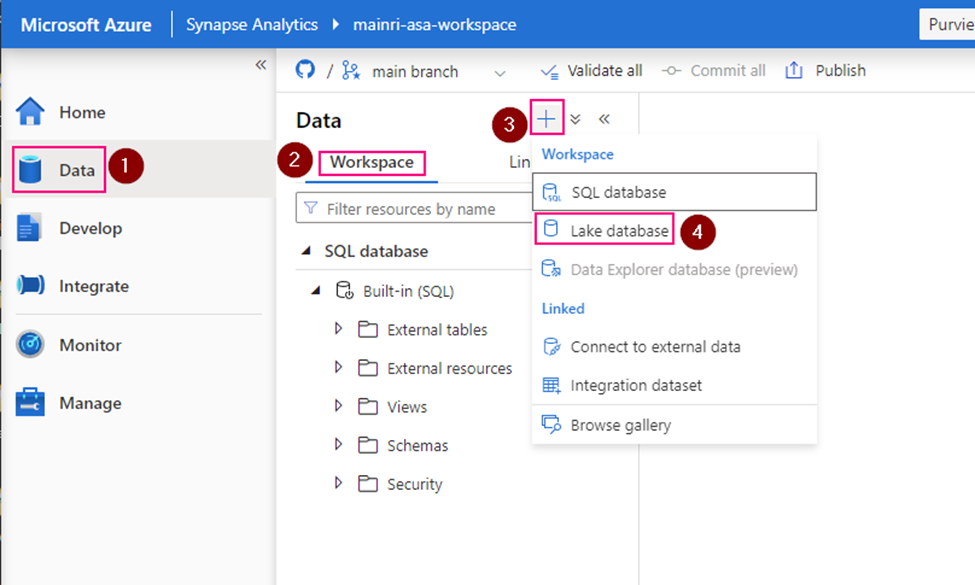
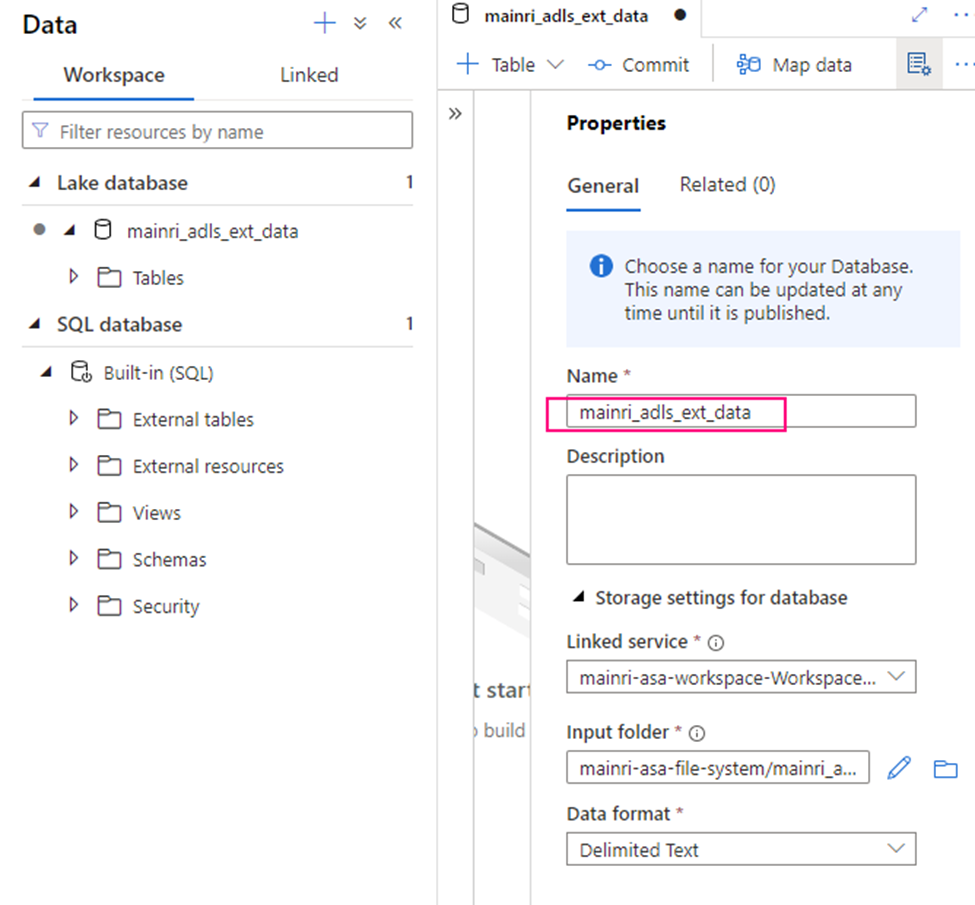
Create Lake Database

Open Synapse Studio

On the left side, select Data portal > workspace

Fill in the properties:

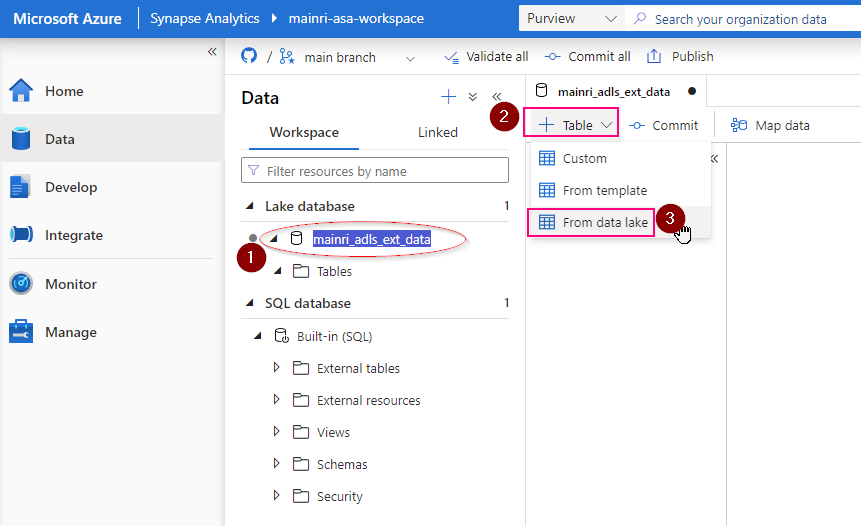
Create external table from data lake

Double clicks the Lake Database you just created.

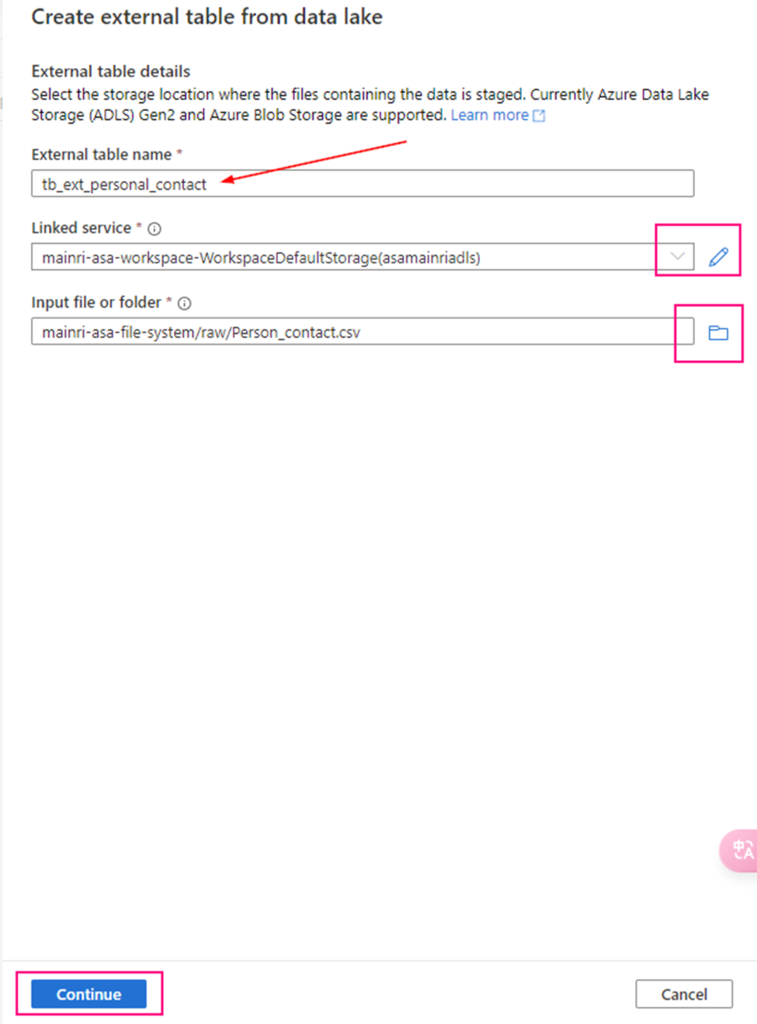
in the Lake Database tag, click “+ Table”

fill in the detail information:

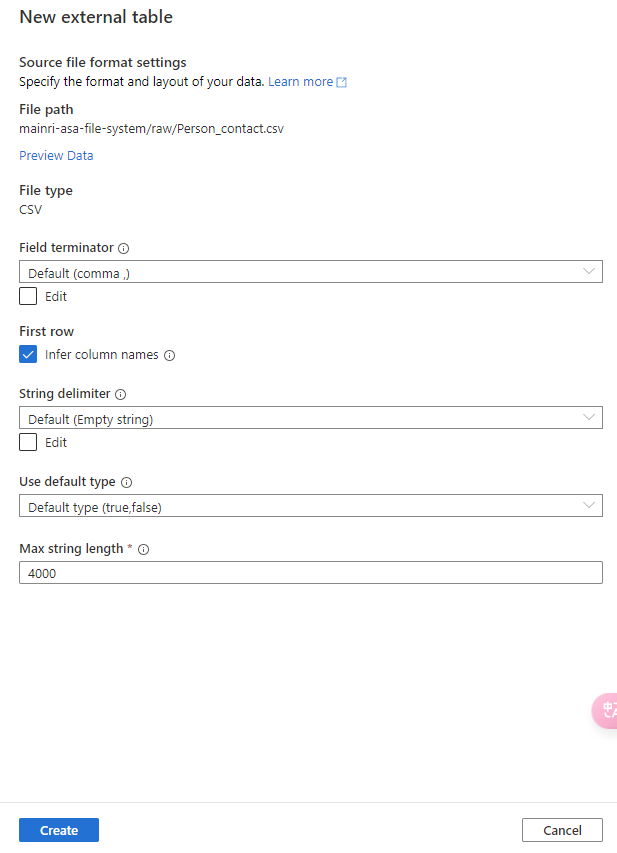
Continue to configure the table properyies

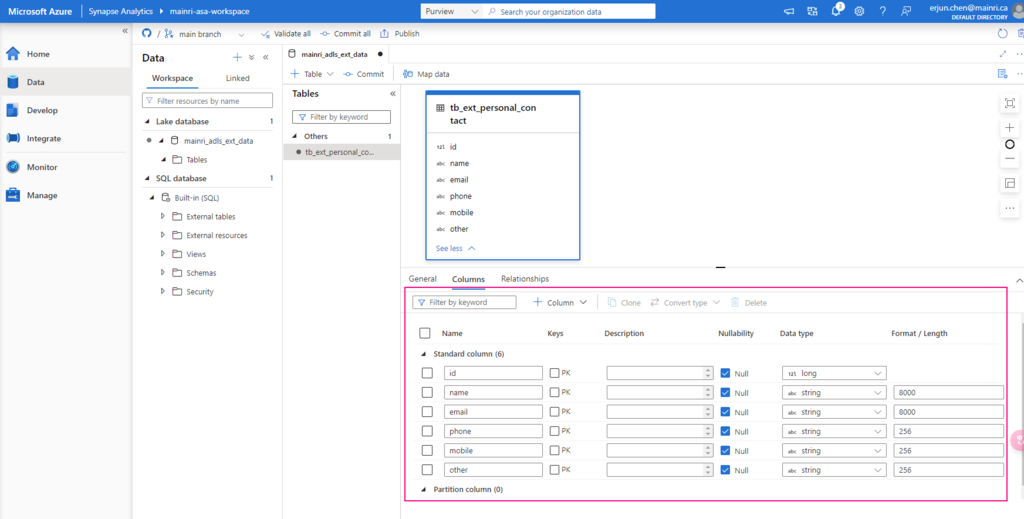
Adjust Table properties

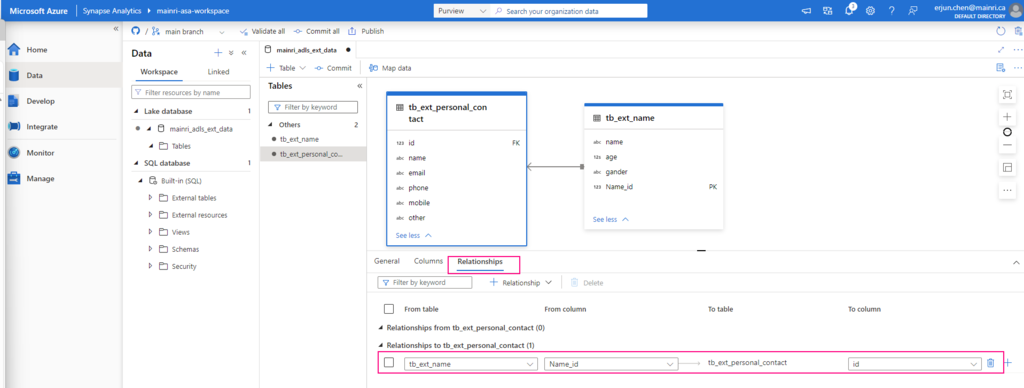
Adjust column other properties, or add even more columns, such as data type, description, Nullability, Primary Key, set up partition create relationship …… etc.

Repeat the above steps to create even more tables to meet your business logic need, or create relationship if need.

Script to create an External Data Source

Step 1:

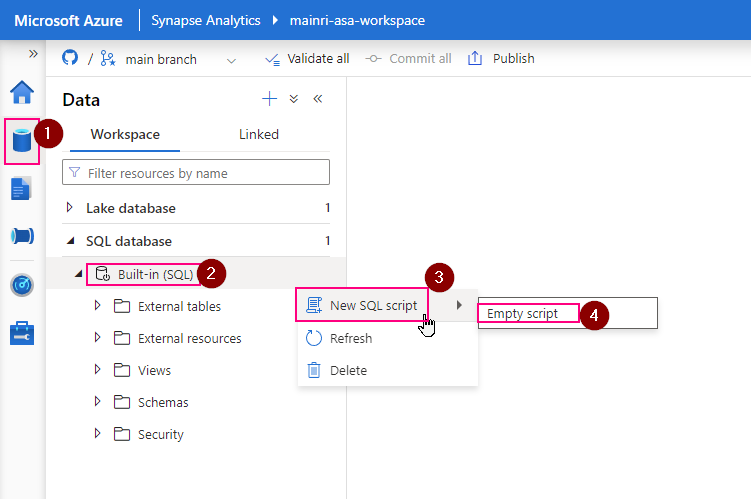
1. Connect to Serverless SQL Pool:

Open Synapse Studio, go to the “Data” hub, and connect to your serverless SQL pool.

2. Create the External Data Source:

Use the following T-SQL script to create an external data source that points to your Azure Data Lake Storage (ADLS) or Blob Storage:

CREATE EXTERNAL DATA SOURCE MyExternalDataSource
WITH (
LOCATION = ‘https://<your-storage-account-name>.dfs.core.windows.net/<your-filesystem-name>‘,
CREDENTIAL = <your-credential-name>
);

Replace <your-storage-account-name>, <your-filesystem-name>, and <your-credential-name> with the appropriate values:

  • LOCATION: The URL of your Azure Data Lake Storage (ADLS) or Blob Storage.
  • CREDENTIAL: The name of the database credential used to access the storage. (You may need to create this credential if it doesn’t already exist.)

Step 2:

If you don’t have a credential yet, create one as follows:

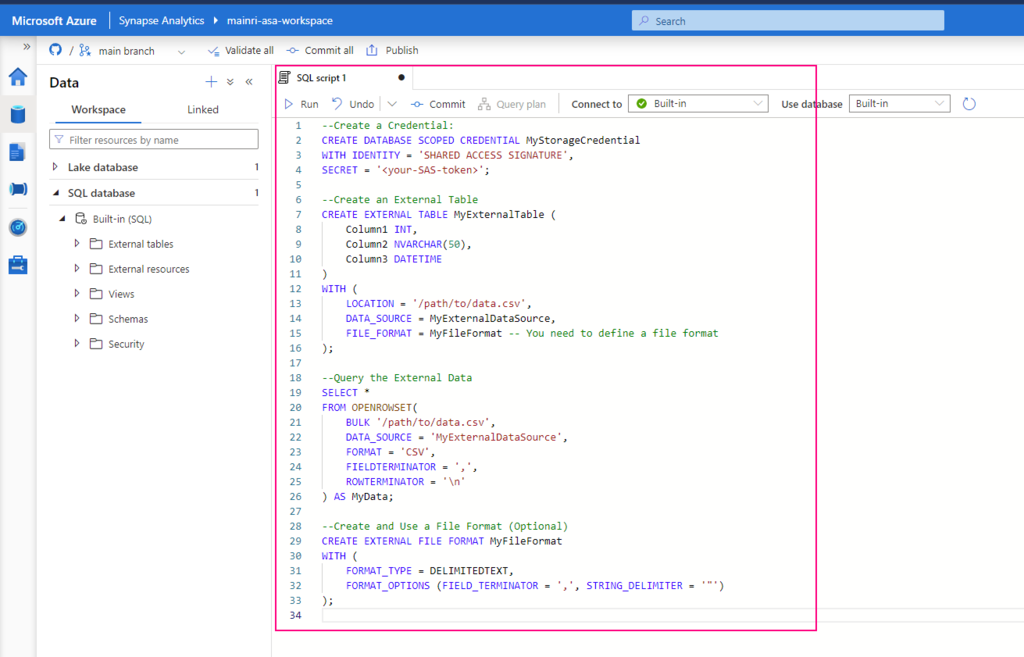
1. Create a Credential:

CREATE DATABASE SCOPED CREDENTIAL MyStorageCredential
WITH IDENTITY = ‘SHARED ACCESS SIGNATURE’,
SECRET = ”;

Replace <your-SAS-token> with your Azure Storage Shared Access Signature (SAS) token.

2. Create an External Table or Query the External Data

After setting up the external data source, you can create external tables or directly query data:

Create an External Table:

You can create an external table that maps to the data in your external storage:

CREATE EXTERNAL TABLE MyExternalTable (
Column1 INT,
Column2 NVARCHAR(50),
Column3 DATETIME
)
WITH (
LOCATION = ‘/path/to/data.csv’,
DATA_SOURCE = MyExternalDataSource,
FILE_FORMAT = MyFileFormat — You need to define a file format
);

Query the External Data

You can also directly query the data without creating an external table:

SELECT *
FROM OPENROWSET(
BULK ‘/path/to/data.csv’,
DATA_SOURCE = ‘MyExternalDataSource’,
FORMAT = ‘CSV’,
FIELDTERMINATOR = ‘,’,
ROWTERMINATOR = ‘\n’
) AS MyData;

Create and Use a File Format (Optional)

If you are querying structured files (like CSV, Parquet), you might need to define a file format:

CREATE EXTERNAL FILE FORMAT MyFileFormat
WITH (
FORMAT_TYPE = DELIMITEDTEXT,
FORMAT_OPTIONS (FIELD_TERMINATOR = ‘,’, STRING_DELIMITER = ‘”‘)
);

Summary

By following these steps, you should be able to connect to and query your external data sources using the serverless SQL pool in Synapse. Let me know if you need further assistance!

  • Create an external data source in Synapse serverless SQL to point to your external storage.
  • Create a database scoped credential if necessary to access your storage.
  • Create an external table or directly query data using OPENROWSET.
  • Define a file format if working with structured data like CSV or Parquet.

Please do not hesitate to contact me if you have any questions at William . chen @ mainri.ca

(remove all space from the email account 😊)

Day 10: Workflows in Azure Purview

Workflow in Purview

In Azure Purview, a workflow refers to a set of predefined, automated tasks that streamline and manage certain processes, such as approving data access requests or managing metadata curation.

Workflows in Azure Purview help automate data governance operations and improve collaboration across teams. They can include tasks like approving the registration of new data sources, assigning data stewards, or managing access to certain datasets.

Key Features of Workflows in Azure Purview:

  1. Data Curation and Approval Processes
    Workflows can be used to automate the process of curating and approving metadata changes or lineage extraction requests.
  2. Automated Notifications
    Users can receive notifications when tasks like data registration or classification have been completed or need approval.
  3. Customizable Steps
    Workflows are customizable, allowing we to define multiple stages of approval or validation depending on the organization’s governance policies.
  4. Access Management
    We can define workflows to manage how access requests are handled for sensitive data.
  5. Approval Requests
    For example, if someone registers a new data source, the workflow might require approval from a Purview Collection Administrator before proceeding.

Next step: Day 11 –

Please do not hesitate to contact me if you have any questions at William . chen @ mainri.ca

(remove all space from the email account 😊)

Day 11: Purview Access Control and Management

This article describes collections and access management for your account in the Microsoft Purview governance portal.

Please do not hesitate to contact me if you have any questions at William . chen @ mainri.ca

(remove all space from the email account 😊)

Next Step: Day 11:

Day 9: Managed attributes in Data Map

With “Managed Attributes” we can add own attributes (groups of attributes) and provide data stewards with the functionality to improve the content of data catalog.

  • create a new attribute group
  • create a new attribute
  • learn more about the available field types
  • assign and manage attributes for your data assets

Create a new attribute group

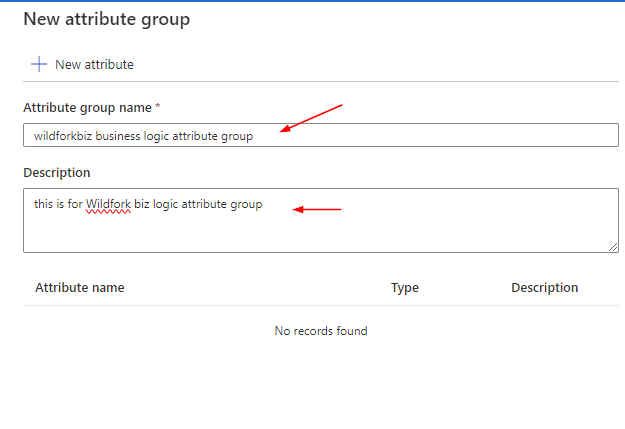
Create attribute group if there is no attribute group

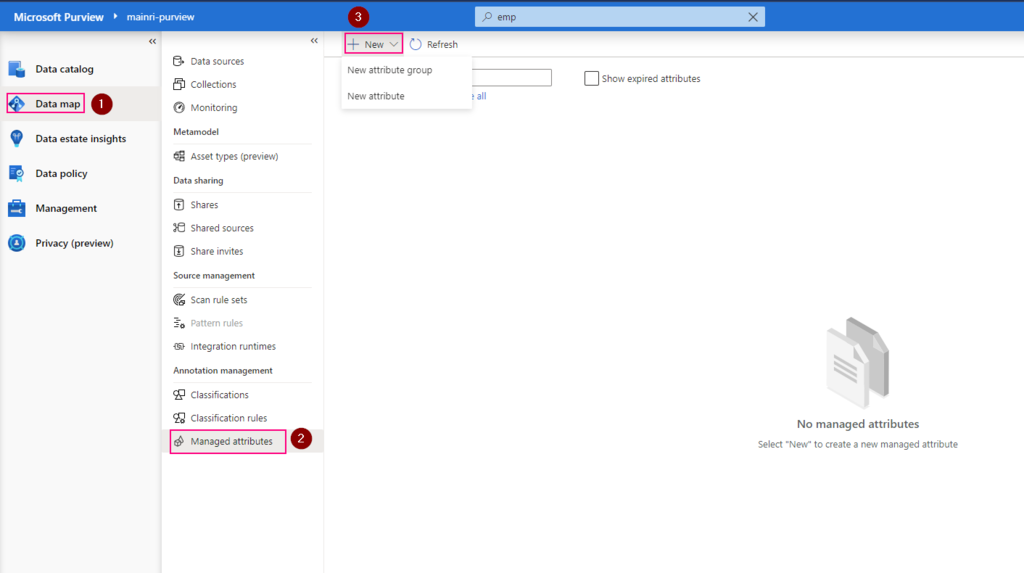
Purview studio > Data Map > Managed attributes > New attribute group

Fill in

Create a new attribute

File in those fields
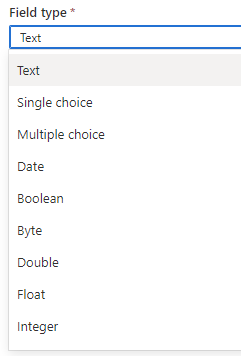
For field group: There are those can be selected

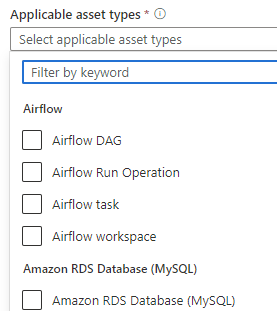
For applicable asset types, many options out of box to be used

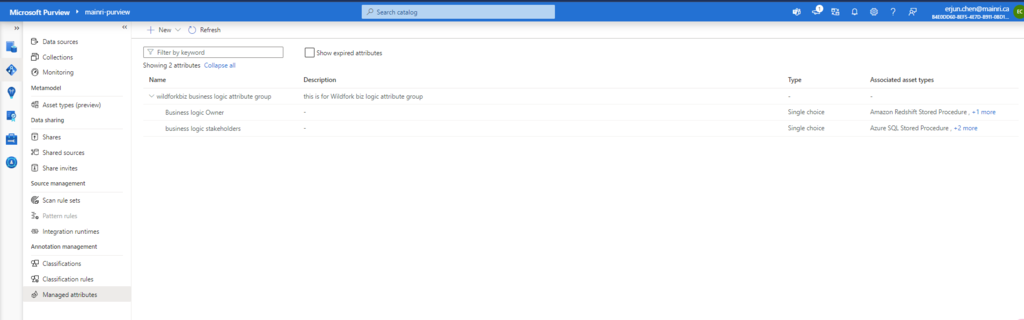
Now, new attributes created

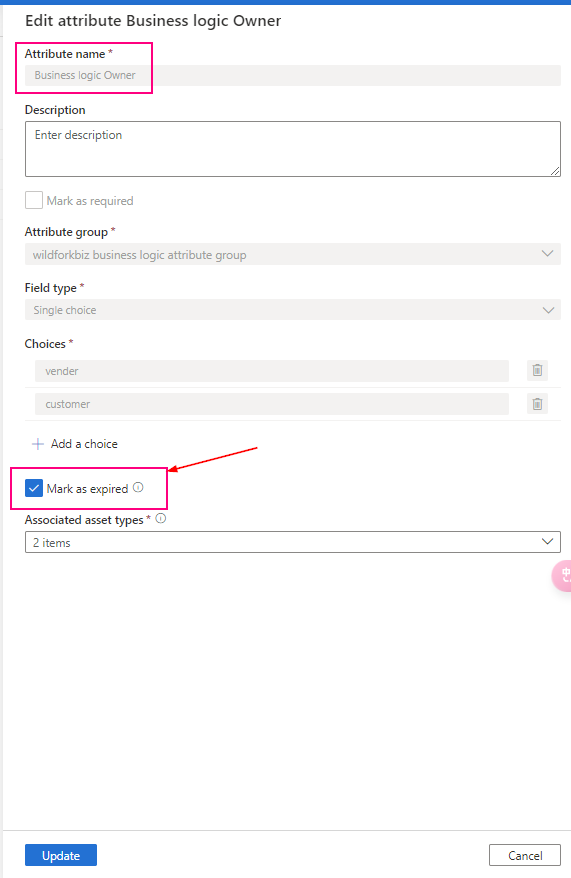
In the managed attribute management experience, managed attributes can’t be deleted, only expired. Expired attributes can’t be applied to any assets and are, by default, hidden in the user experience. Once an attribute created, it cannot change. Only mark them as “expired” and create a new, undated one.

Add value for managed attribute

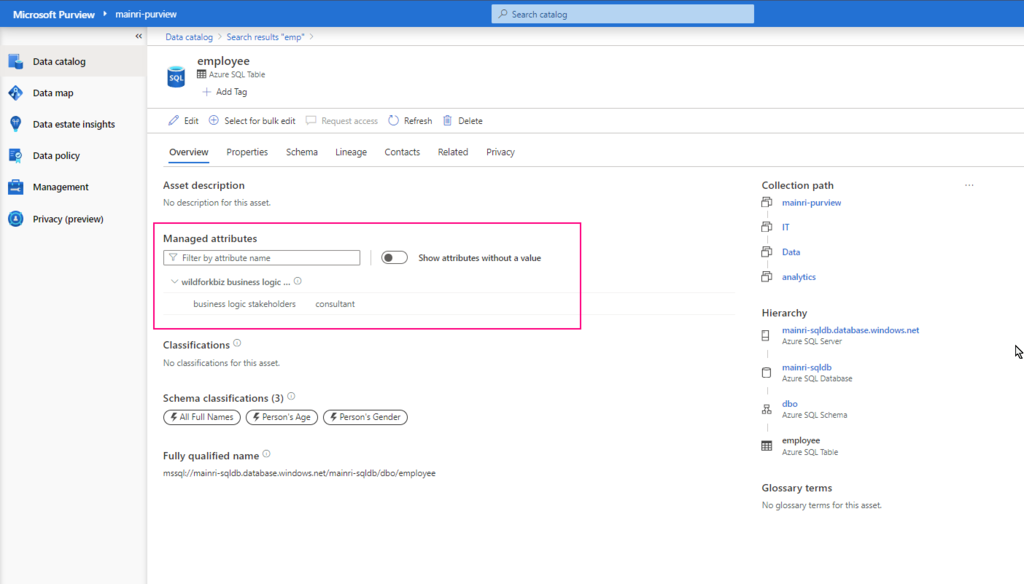
Once a managed attribute has been created, you’ll need to add a value for each of your assets. You can add values to your assets by:

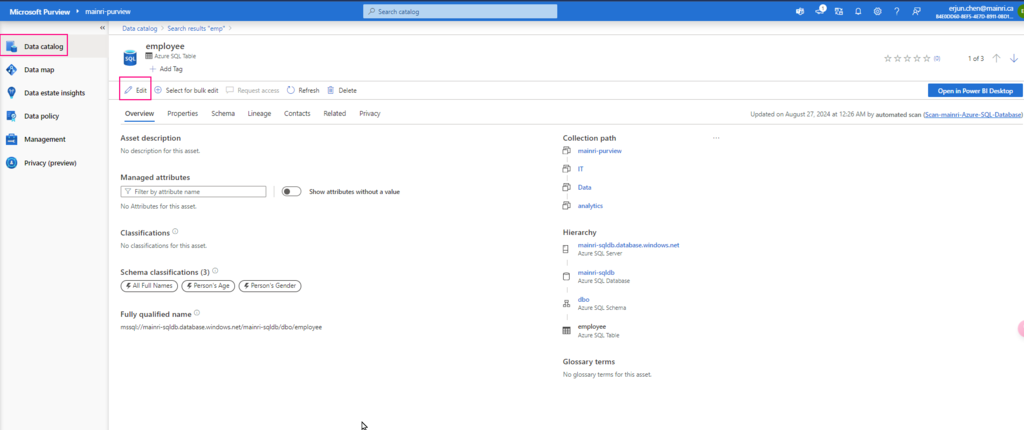
  1. Search for your data asset in the Microsoft Purview Data Catalog
  2. On the overview for your asset, you should see the managed attributes section with all attributes that have values. (You can see attributes without values by using the Show attributes without a value toggle.)
  3. Select the Edit button.

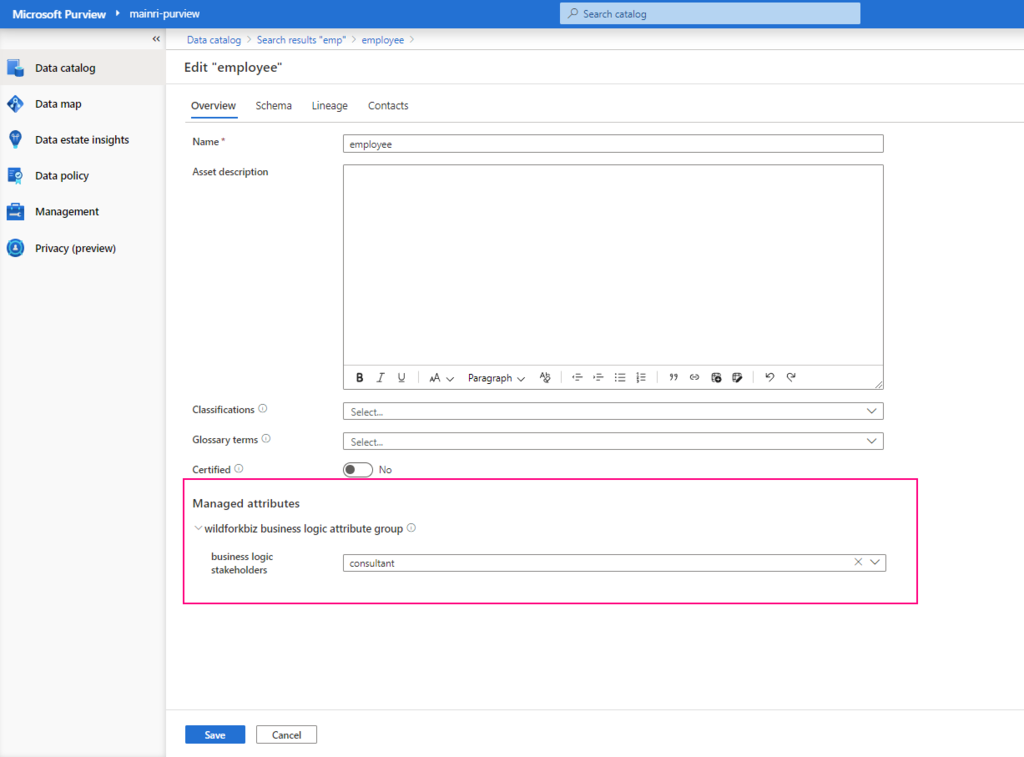
Under Managed attributes, add values for each of your attributes.

If any attributes are Required you will not be able to save until you’ve added a value for that attribute.

Now, managed attribute added

Summary

Managed attribute: A set of user-defined attributes that provide a business or organization level context to an asset. A managed attribute has a name and a value. For example, ‘Department’ is an attribute name and ‘Finance’ is its value. Attribute group: A grouping of managed attributes that allow for easier organization and consumption.

Please do not hesitate to contact me if you have any questions at William . chen @ mainri.ca

(remove all space from the email account 😊)

Next step: Day 10 – Collections access control and management

Day 8 – Data Lineage, Extract SQL, ADF and Synapse Pipeline Lineage

Microsoft Purview provides an overview of data lineage in the Data Catalog. It also details how data systems can integrate with the catalog to capture lineage of data.

Lineage is represented visually to show data moving from source to destination including how the data was transformed. Given the complexity of most enterprise data environments.

Microsoft Purview supports lineage for views and stored procedures from Azure SQL Database. While lineage for views is supported as part of scanning, you will need to turn on the Lineage extraction toggle to extract stored procedure lineage when you’re setting up a scan.

Lineage collection

Metadata collected in Microsoft Purview from enterprise data systems are stitched across to show an end to end data lineage. Data systems that collect lineage into Microsoft Purview are broadly categorized into following three types:

  • Data processing systems
  • Data storage systems
  • Data analytics and reporting systems

Each system supports a different level of lineage scope.  

Data estate might include systems doing data extraction, transformation (ETL/ELT systems), analytics, and visualization systems. Each of the systems captures rich static and operational metadata that describes the state and quality of the data within the systems boundary. The goal of lineage in a data catalog is to extract the movement, transformation, and operational metadata from each data system at the lowest grain possible.

The following example is a typical use case of data moving across multiple systems, where the Data Catalog would connect to each of the systems for lineage.

  • Data Factory copies data from on-prem/raw zone to a landing zone in the cloud.
  • Data processing systems like Synapse, Databricks would process and transform data from landing zone to Curated zone using notebooks.
  • Further processing of data into analytical models for optimal query performance and aggregation.
  • Data visualization systems will consume the datasets and process through their meta model to create a BI Dashboard, ML experiments and so on.

Lineage for SQL DB views

Starting 6/30/24, SQL DB metadata scan will include lineage extraction for views. Only new scans will include the view lineage extraction. Lineage is extracted at all scan levels (L1/L2/L3). In case of an incremental scan, whatever metadata is scanned as part of incremental scan, the corresponding static lineage for tables/views will be extracted.

Prerequisites for setting up a scan with Stored Procedure lineage extraction

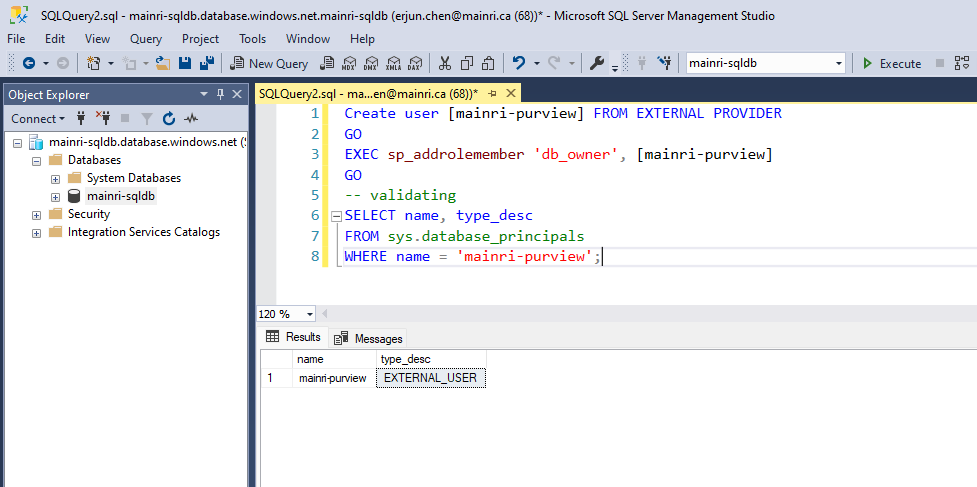
<Purview-Account> can access SQL Database and in db_owner group

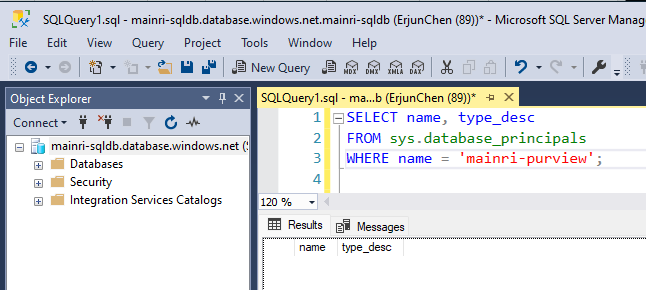
To check whether the Account Exists in the Database


SELECT name, type_desc
FROM sys.database_principals
WHERE name = 'YourUserName';

Replace ‘YourUserName’ with the actual username you’re checking for.

If the user exists, it will return the name and type (e.g., SQL_USER or WINDOWS_USER).

If it does not exist, create one.

Sign in to Azure SQL Database with your Microsoft Entra account, create a <Purview-account> account and assign db_owner permissions to the Microsoft Purview managed identity.

You can review my previous article Configuring Azure Entra ID Authentication in Azure SQL Database If you are not sure how to enable Azure Entra ID login.


Create user <purview-account> FROM EXTERNAL PROVIDER
GO
EXEC sp_addrolemember 'db_owner', <purview-account> 
GO

replace <purview-account> with the actual purview account name.

Master Key

Check whether master exists or not.

To check if the Database Master Key (DMK) exists or not


SELECT * FROM sys.symmetric_keys
WHERE name = '##MS_DatabaseMasterKey##';Create master key
Go

if the query returns a result, it means the Database Master Key already exists.

If no rows are returned, it means the Database Master Key does not exist, and you may need to create one if required for encryption-related operations.

Create a master key


Create master key
Go

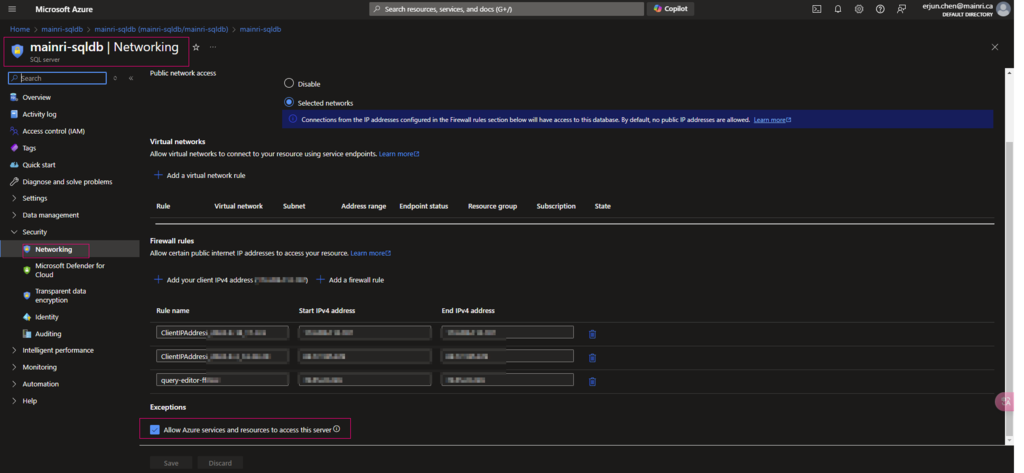
Allow Azure services and resources to access this server 

Ensure that Allow Azure services and resources to access this server is enabled under networking/firewall for your Azure SQL resource.

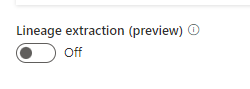
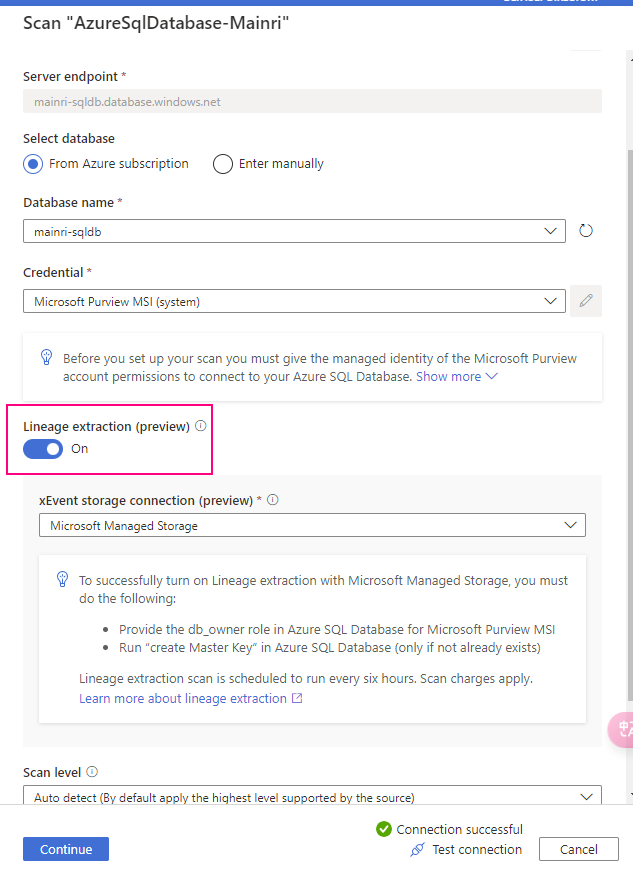
Previously, we have discussed create a scan for Azure SQL Database at Registering Azure SQL Database and Scan in Purview, that scan progress is disabled “Lineage extraction” in that article.

To allow purview extract lineage, we need set to on

Extract Azure Data Factory/Synapse pipeline lineage

When we connect an Azure Data Factory to Microsoft Purview, whenever a supported Azure Data Factory activity is run, metadata about the activity’s source data, output data, and the activity will be automatically ingested into the Microsoft Purview Data Map.

Microsoft Purview captures runtime lineage from the following Azure Data Factory activities:

  • Copy Data
  • Data Flow
  • Execute SSIS Package

If a data source has already been scanned and exists in the data map, the ingestion process will add the lineage information from Azure Data Factory to that existing source. If the source or output doesn’t exist in the data map and is supported by Azure Data Factory lineage Microsoft Purview will automatically add their metadata from Azure Data Factory into the data map under the root collection.

This can be an excellent way to monitor your data estate as users move and transform information using Azure Data Factory.

Connect to Microsoft Purview account in Data Factory

Set up authentication

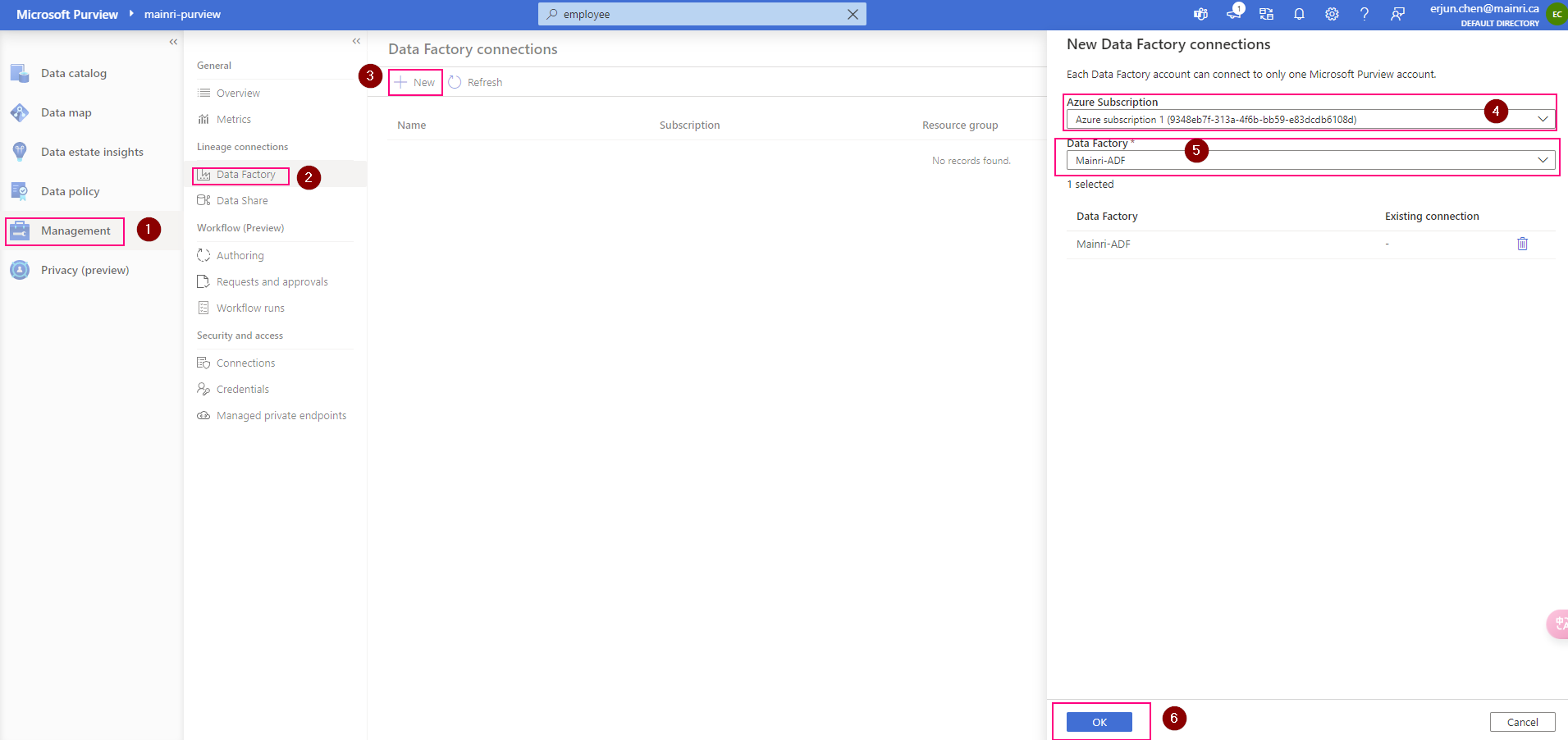
Data factory’s managed identity is used to authenticate lineage push operations from data factory to Microsoft Purview. Grant the data factory’s managed identity Data Curator role on Microsoft Purview root collection.

Purview > Management > Lineage connections > Data Factory > new

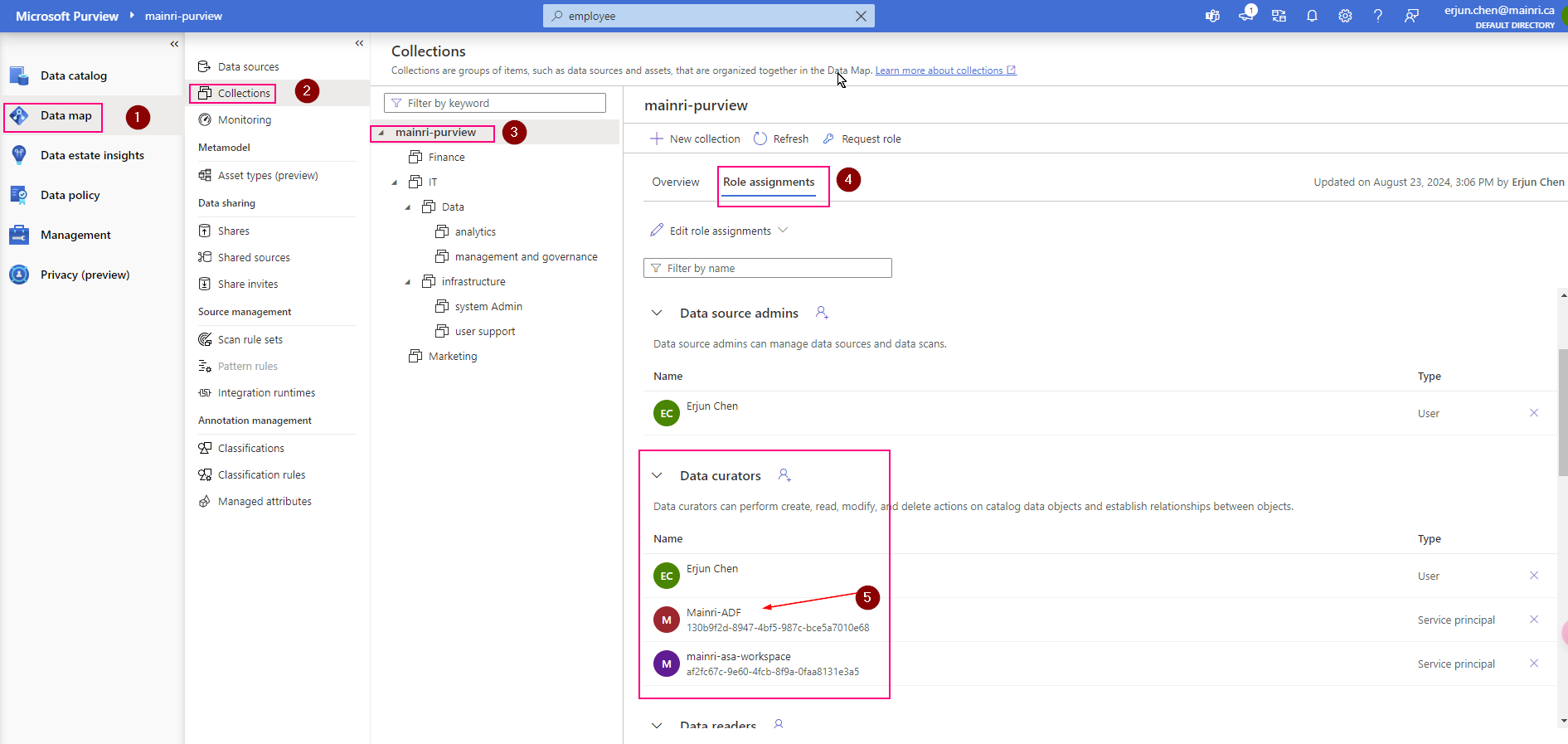
Validation: Purview > Data map > Collection > Root collection > Role assignments >

Check, the ADF is under “data Curators” section. That’s OK

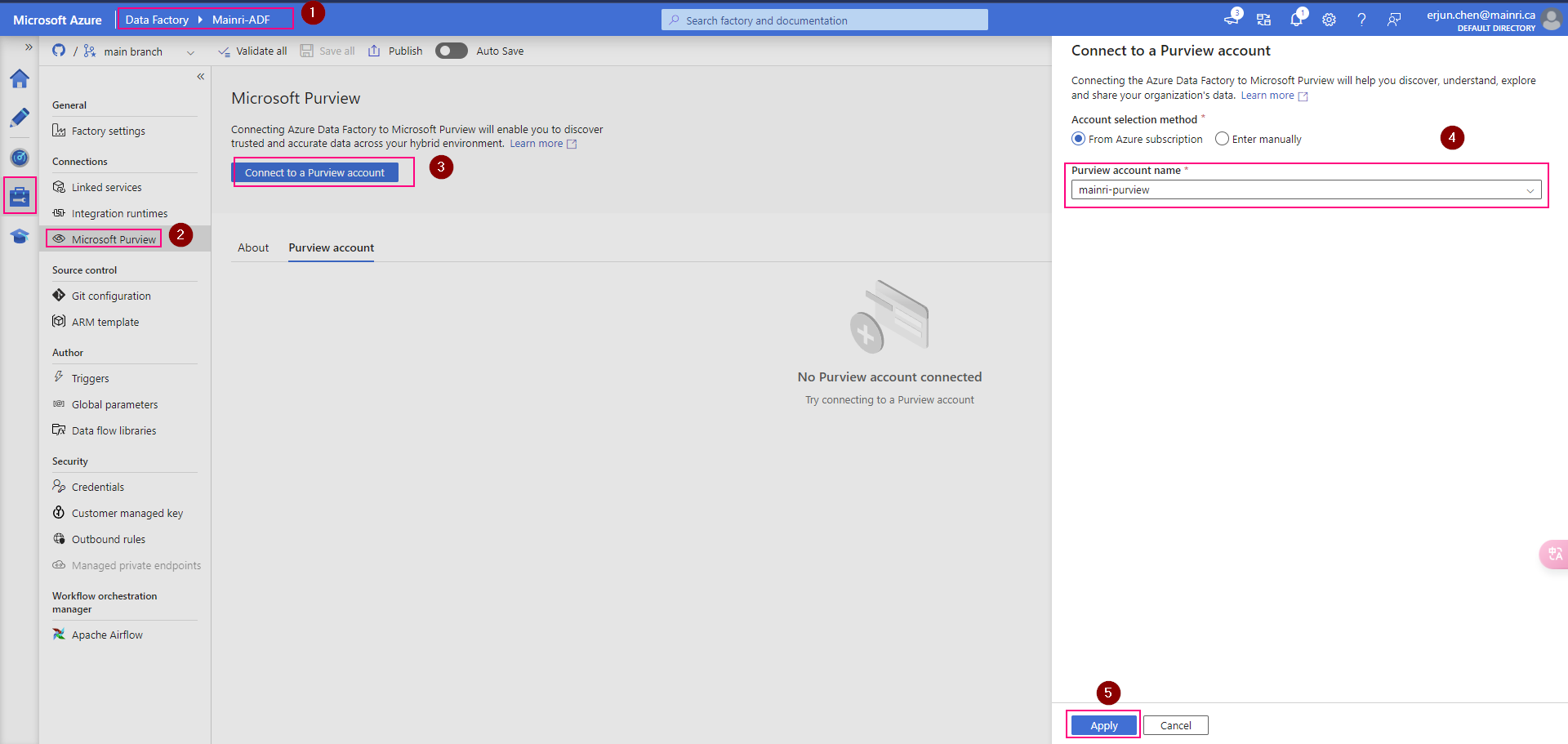
ADF connect to purview

In the ADF studio: Manage -> Microsoft Purview, and select Connect to a Microsoft Purview account

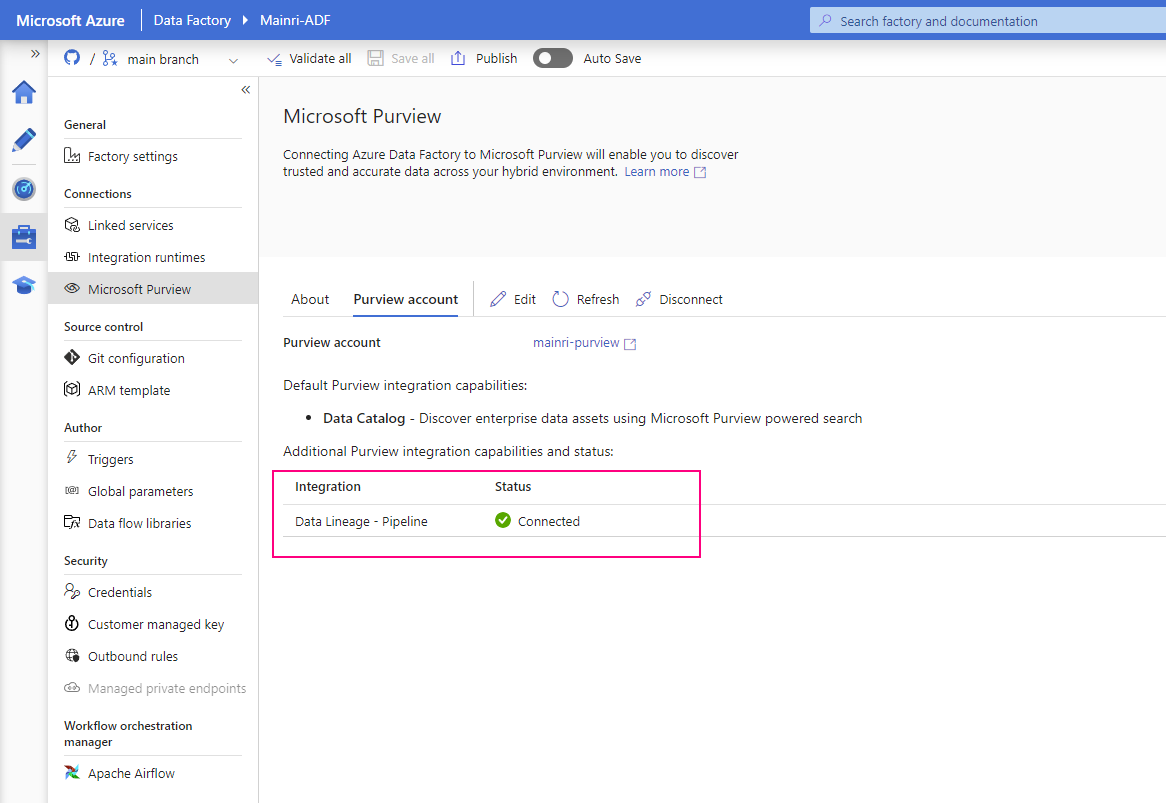
We will see this

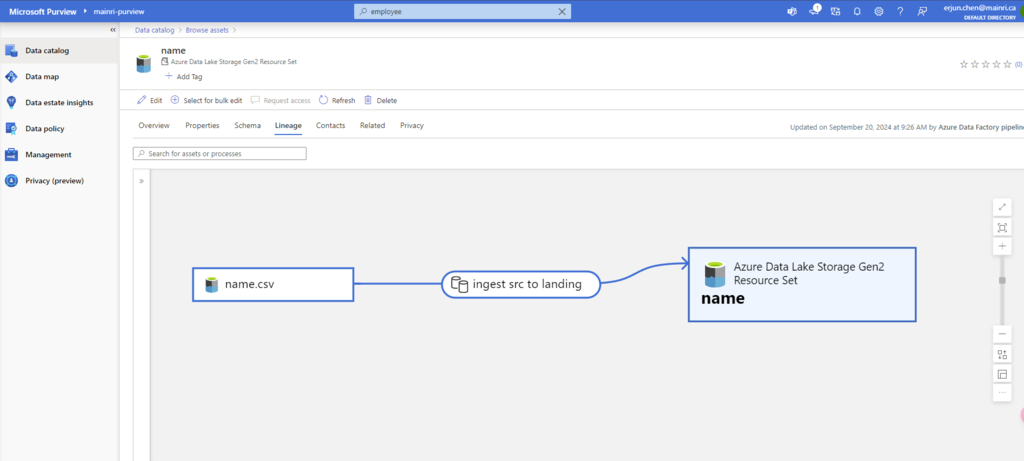
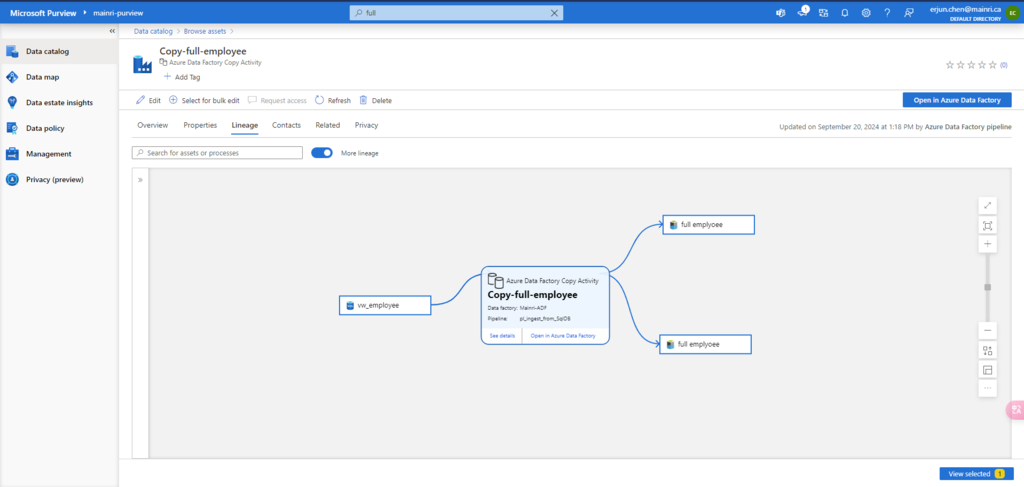
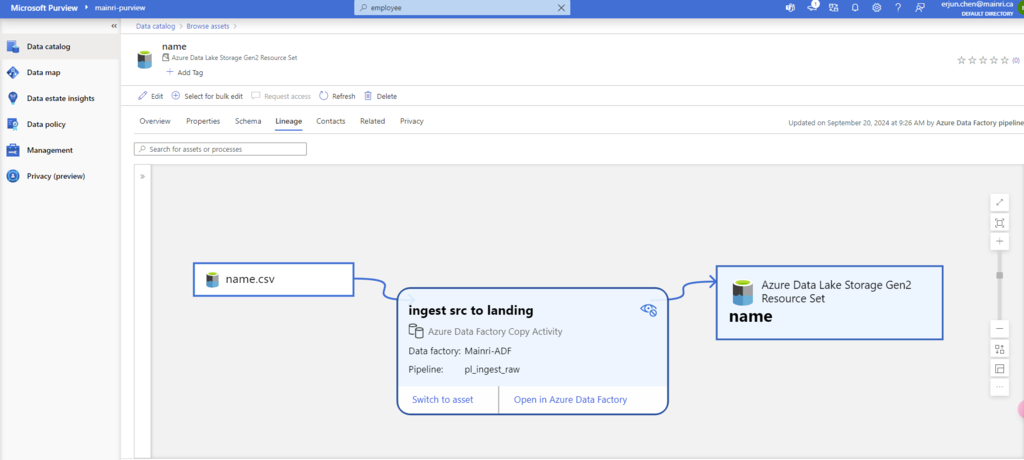
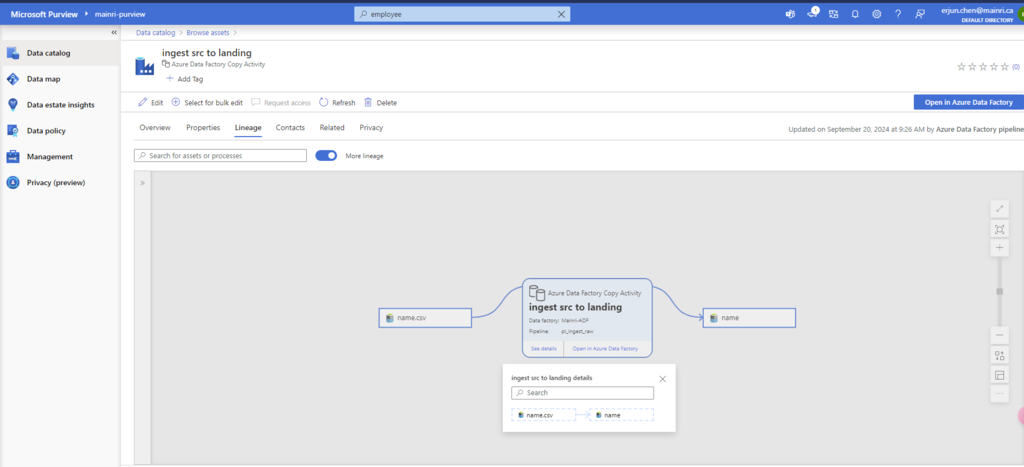
Once pipeline successfully runs, activity will be caught, extracted lineage look this.

that’s all for extracting ADF pipeline lineage.

Next step: Day 9 – Managed attributes in Data Map

Please do not hesitate to contact me if you have any questions at William . chen @ mainri.ca

(remove all space from the email account 😊)

Day 7: Permission and Roles, Business Glossary and Collections Access Control in Purview

Role and roles and responsibilities in Purview

When working with a data catalog, different users and roles are involved. The permission concept in an Azure Purview data map is quite simple.

  • Permissions can be applied at collection level
  • Permission inheritance is possible (but can be restricted)
  • As of today, four roles (admins, data source admins, curators and readers) are available

The Microsoft Purview governance portal uses Collections in the Microsoft Purview Data Map to organize and manage access across its sources, assets, and other artifacts.

Collections

A collection is a tool that the Microsoft Purview Data Map uses to group assets, sources, and other artifacts into a hierarchy to manage access control. All accesses to the Microsoft Purview governance portal’s resources are managed from collections in the Microsoft Purview Data Map.

Role

The Microsoft Purview governance portal uses a set of predefined roles to control who can access what within the account.

These roles are currently:

  • Collection administrator 
  • Data curators
  • Data readers
  • Data source administrator
  • Insights reader
  • Policy author
  • Workflow administrator 

Detail definition please review Microsoft Purview official documentation.

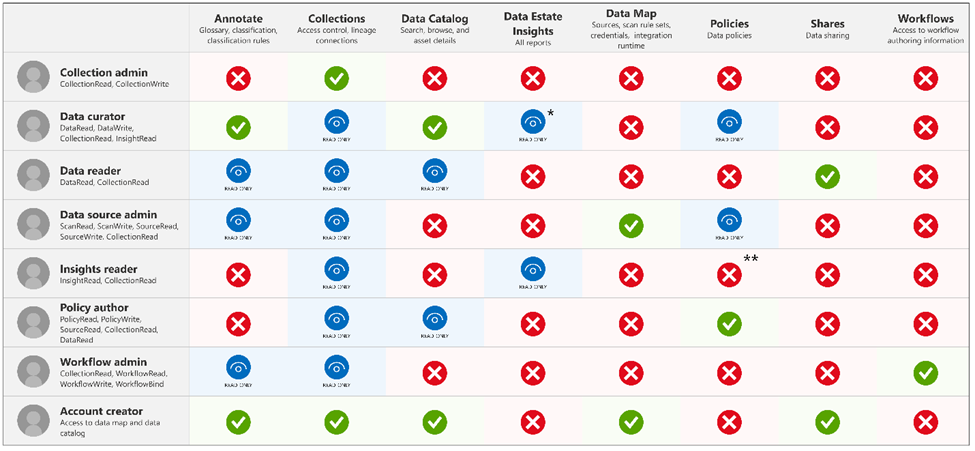
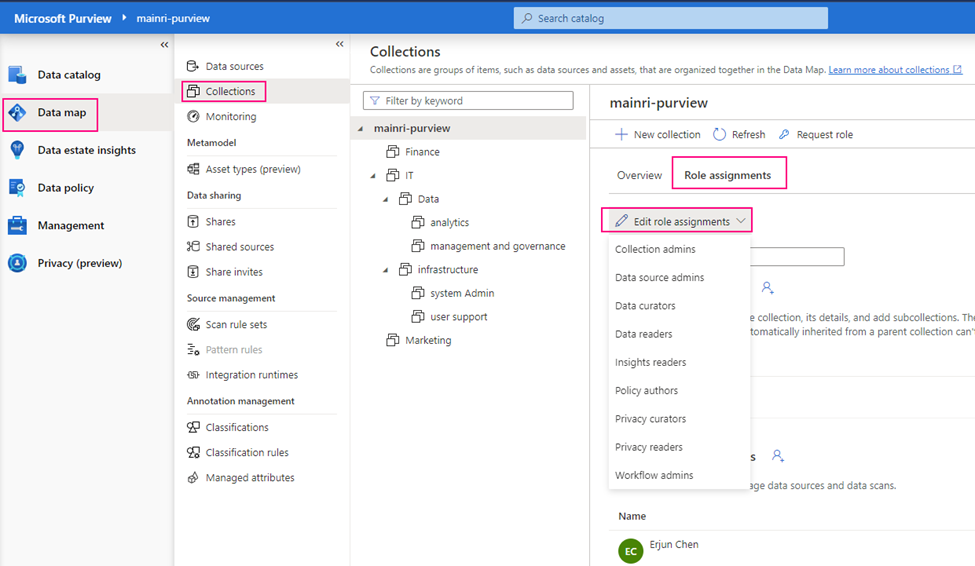
Here is a summary of roles and responsibilities

Add or move Role assignments

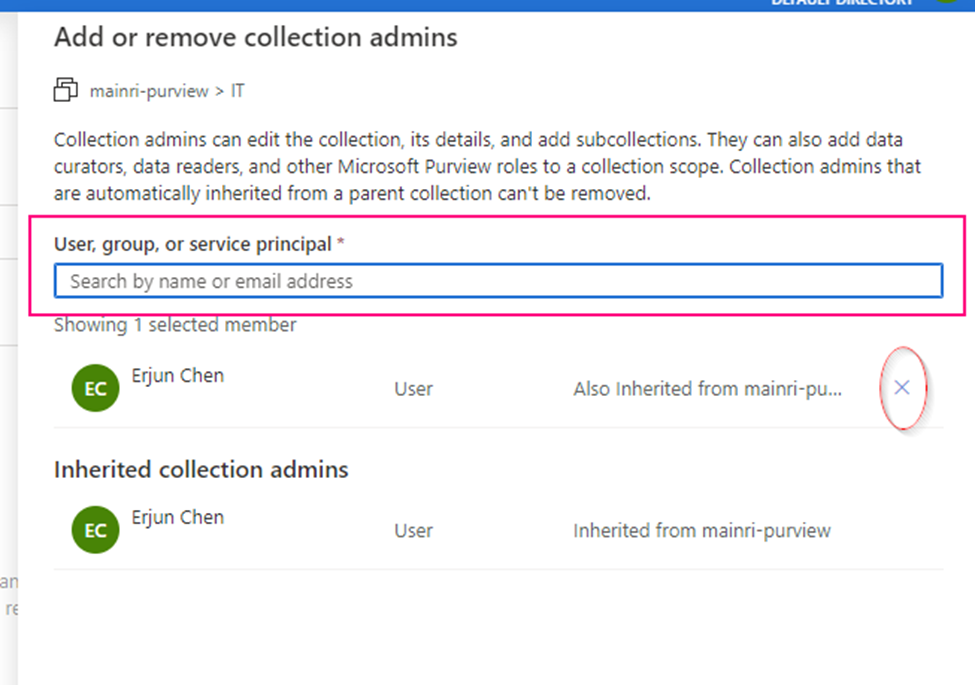
Select the Role assignments tab to see all the roles in a collection. Only a collection admin can manage role assignments.

Type in the textbox to search for users you want to add to the role member. Select X to remove members you don’t want to add.

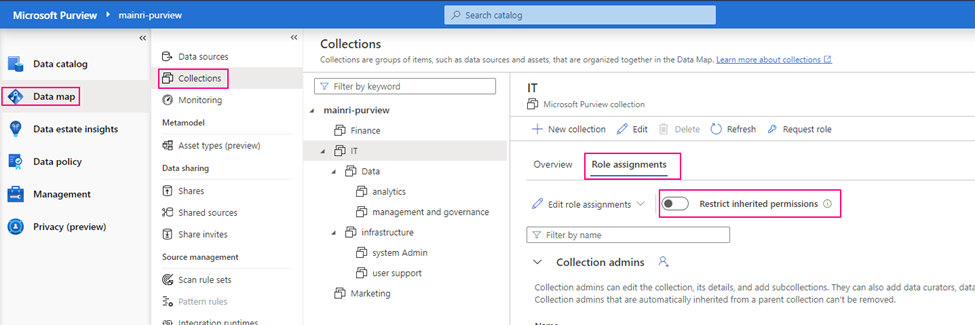
Restrict inheritance

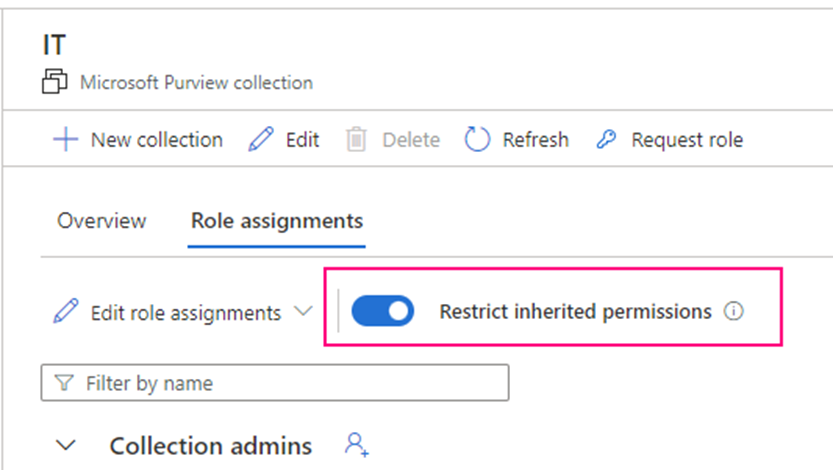
Collection permissions are inherited automatically from the parent collection. For example, any permissions on the root collection (the collection at the top of the list that has the same name as your account), will be inherited by all collections below it. You can restrict inheritance from a parent collection at any time, using the restrict inherited permissions option.

After restriction, inherited members are removed from the roles expect for collection admin.

Select the Restrict inherited permissions toggle button again to revert.

Business Glossary

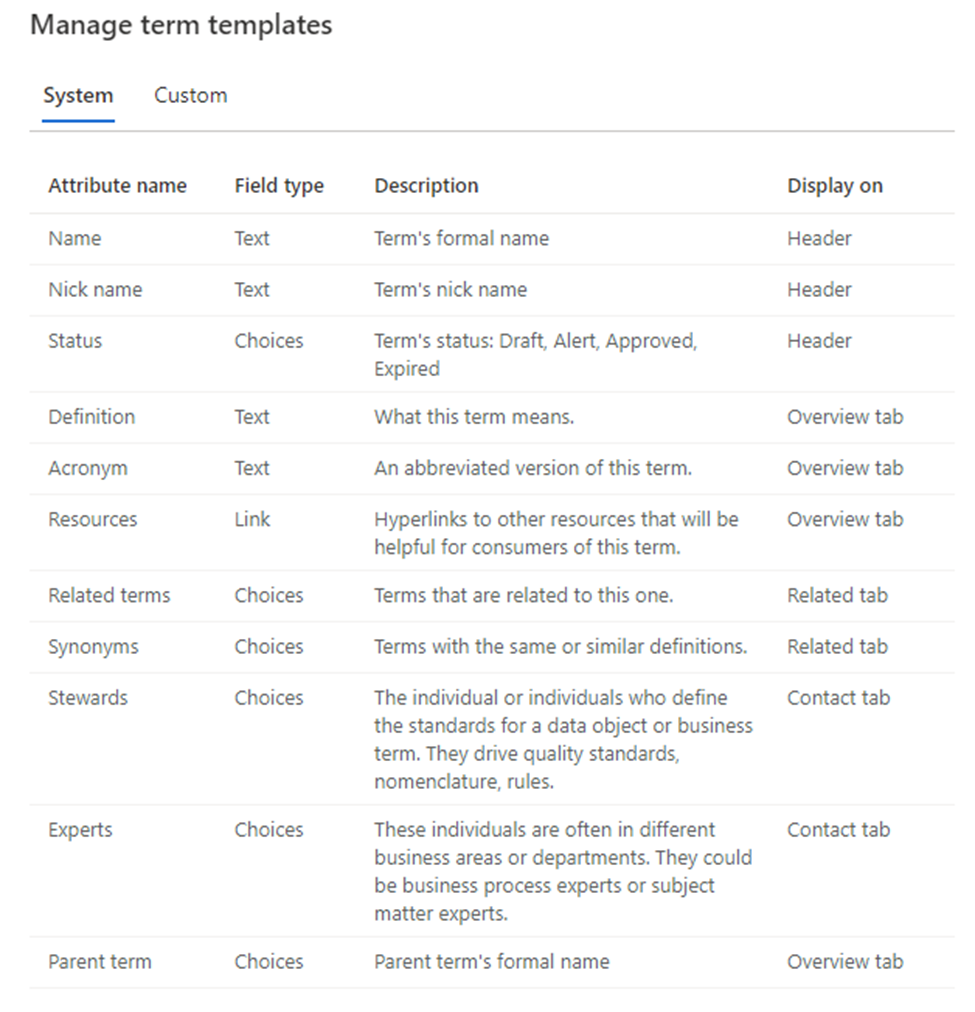
glossary provides vocabulary for business users. It consists of business terms that can be related to each other and allow them to be categorized so that they can be understood in different contexts. 

business glossary is a collection of terms. Each term represents an object in an organization and it’s highly likely that there are multiple terms representing the same object.

There are some out of box templates that have predefined.

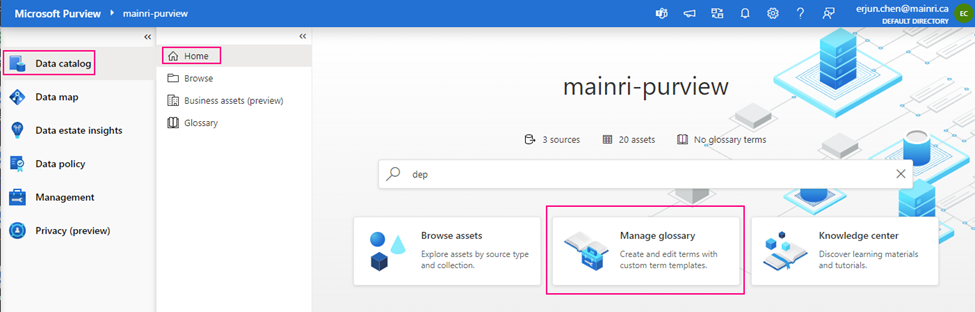
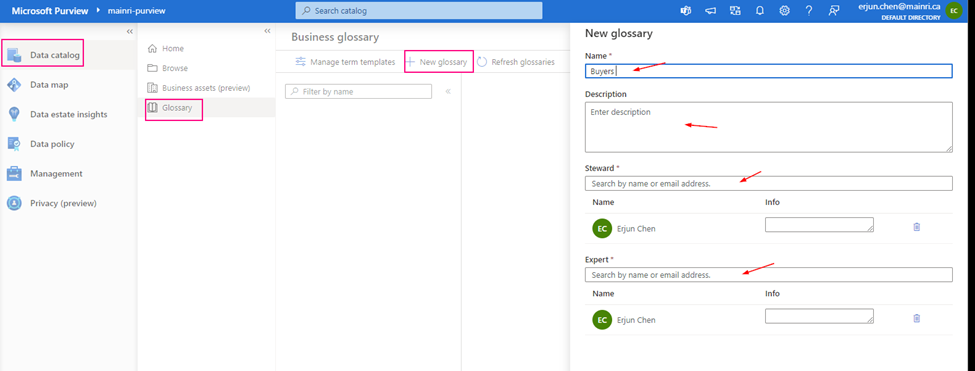
Add new glossary

Purview studio > Data Catalog > Glossary > new Glossary

Fill in all properties.

Next step: Day 8 – Data Lineage – Extract SQL, ADF and Synapse Pipeline Lineage

Please do not hesitate to contact me if you have any questions at William . chen @ mainri.ca

(remove all space from the email account 😊)

Day 6: Registering Azure Synapse Analytics workspaces and scan in Microsoft Purview

Previously, we’ve talked about how Purview connect to ADLS and SQL Database, scan in Purview. Today, we focused on Azure Synapse Analytics with Purview.

A comprehensive data analytics solution can include many folders and files in a data lake, and multiple databases that each contain many tables, each with multiple fields. For a data analyst, finding and understanding the data assets associated with a Synapse Analytics workspace can present a significant challenge before any analysis or reporting can even begin.

As we know the Azure Synapse Analytics is a platform for cloud-scale analytics workloads that process data in multiple sources; including:

  • Relational databases in serverless and dedicated SQL pools
  • Files in Azure Data Lake Storage Gen2

Microsoft Purview can help in this scenario by cataloging the data assets in a data map, and enabling data stewards to add metadata, categorization, subject matter contact details, and other information that helps data analysts identify and understand data.

Before you scan Synapse workspace, you need Azure Synapse Analytics connects Purview account.

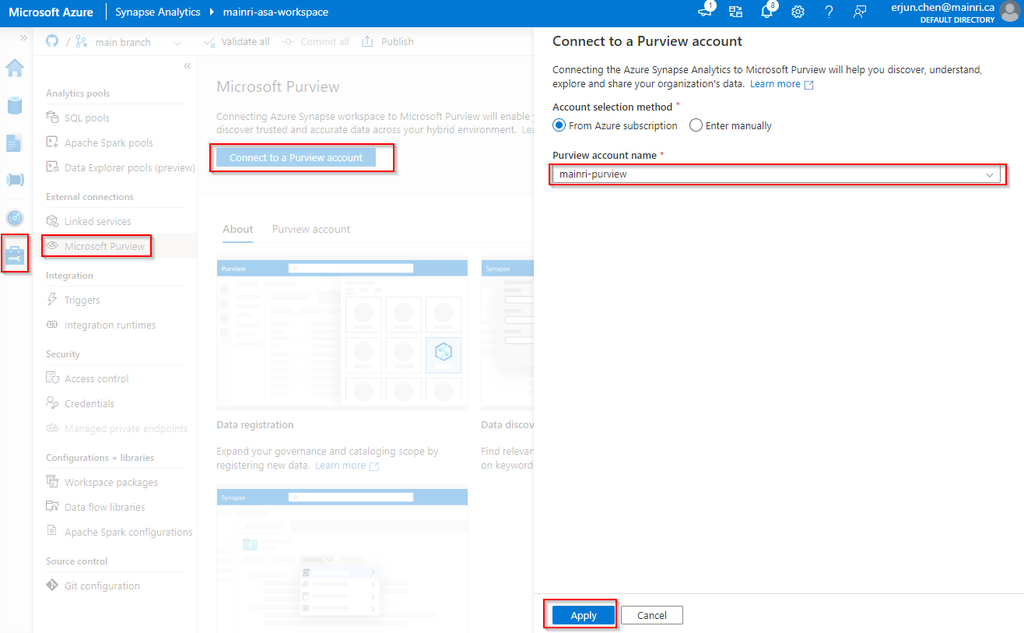
Azure Synapse Analytics connects to Purview account.

Synapse Studio > Manage > External connection > Microsoft Purview

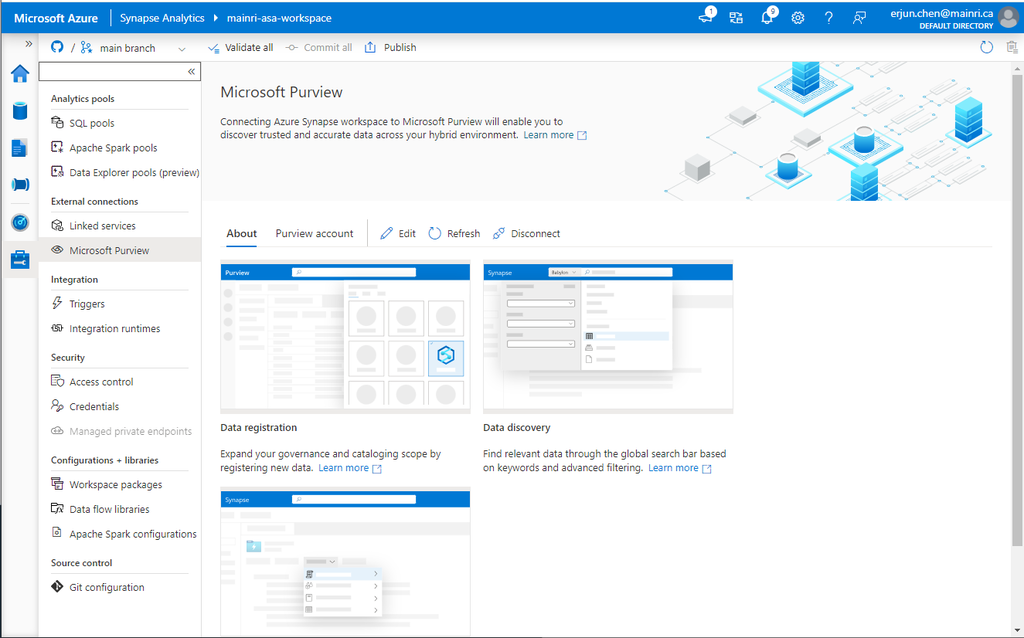
after you click “apply” you will see:

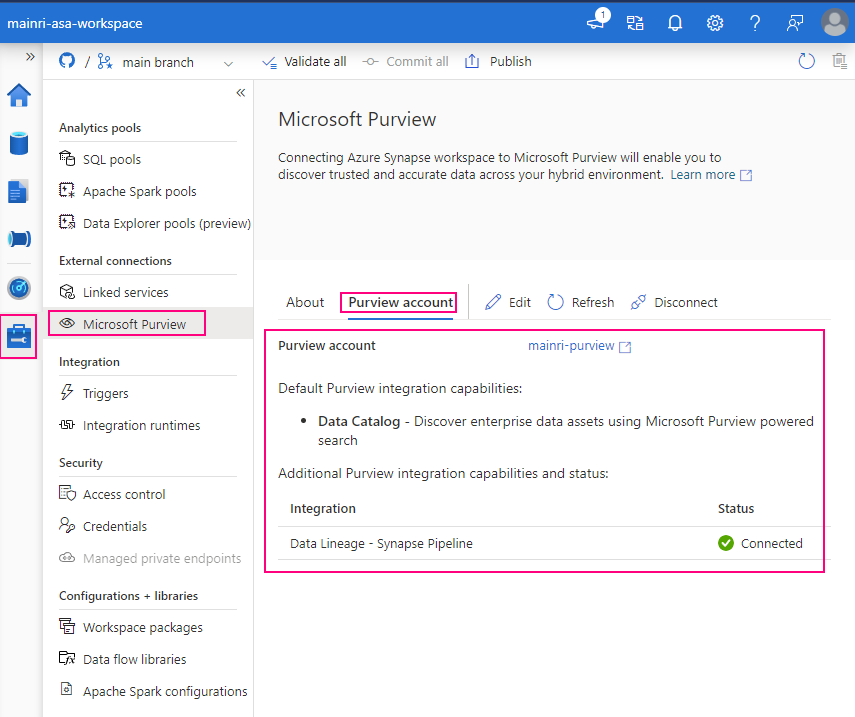
Select “Purview account” tag

Successfully connected with Purview.

To validation, we check what we have in ADLS and SQL Database.

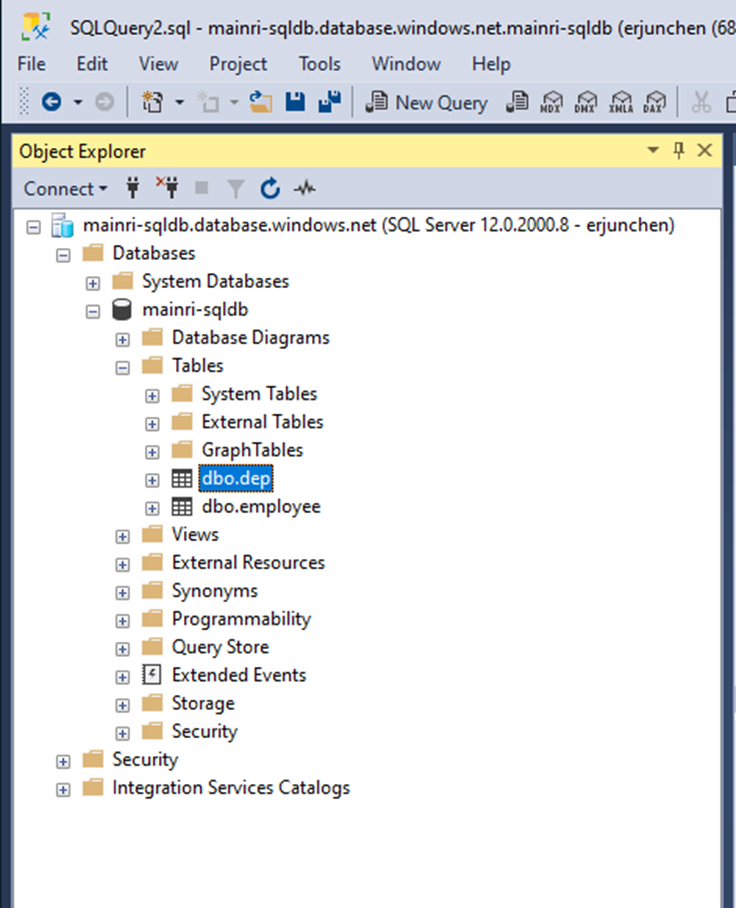
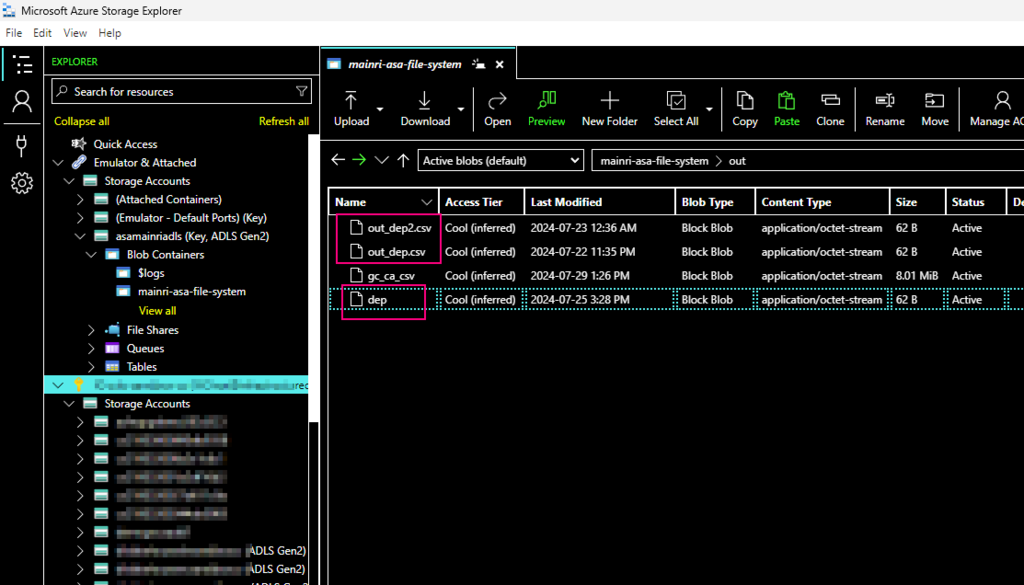
We have in ADLS and Azure SQL Database. There are one table called “dep” in the SQL Database, 3 files in the ADLS.

There is one table in SQL Database:

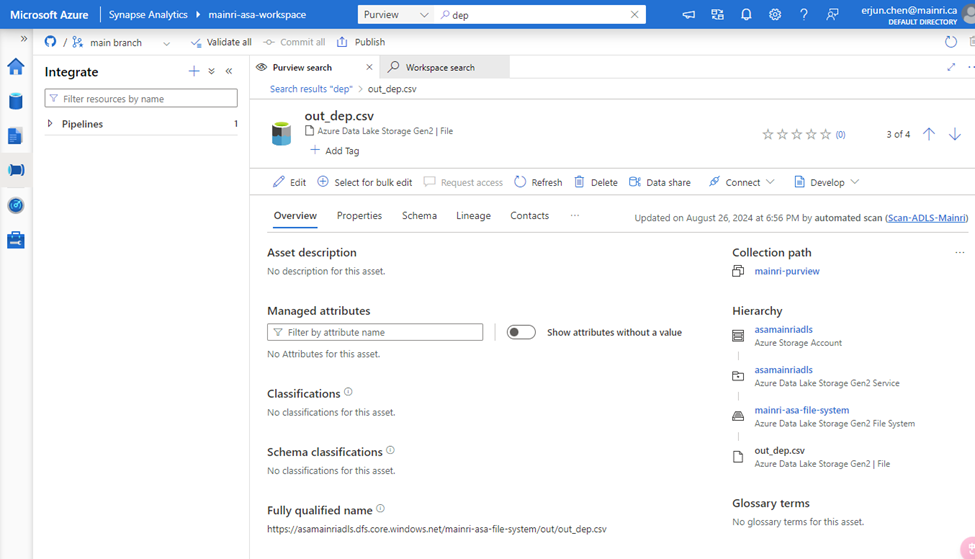
and there are 3 file related the key word “dep” in ADLS,

using Azure Storage Explore:

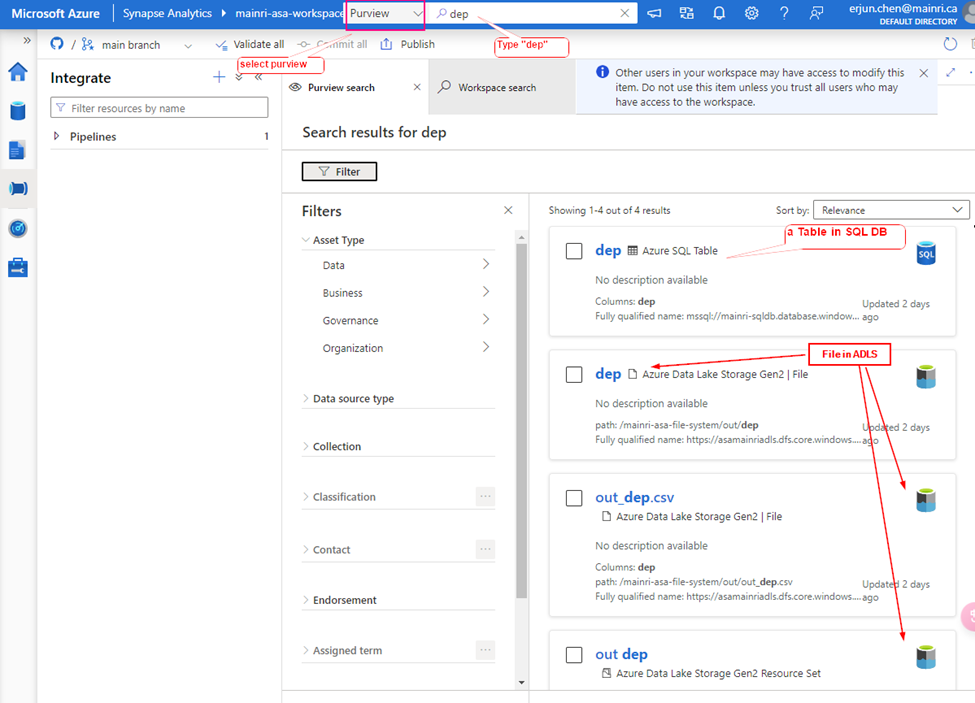
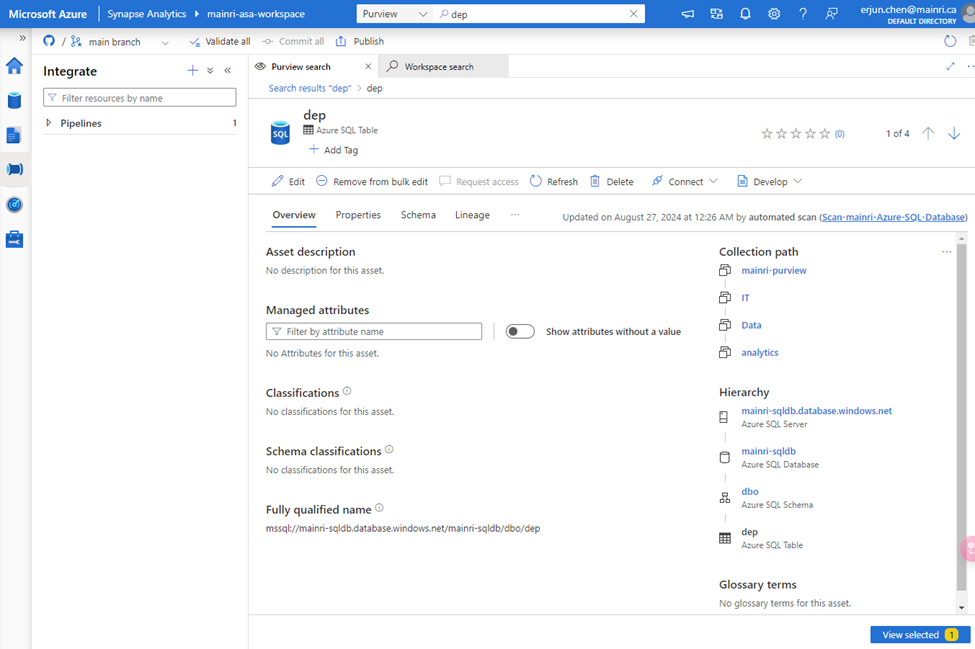
Let’s search “dep” the key from Synapse Studio.

Synapse Studio > from the dropdown > select “Purview” > type “dep”

We find out the objects related to the key words – “dep”

 A table in SQL Database, 3 files in ADLS.

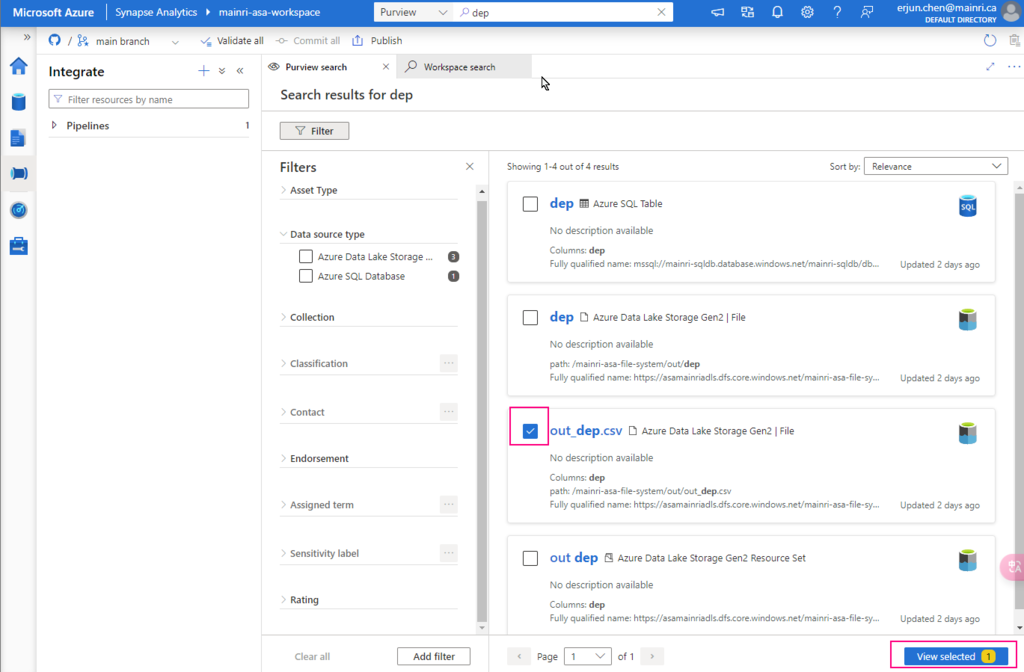
Great, we successfully connected to Purview.

choose either of them to view in detail

There are so many powerful and interesting functions regarding the “Searching”, “discovering”, we will talk about them late.  

Now, let’s switch to Purview studio.

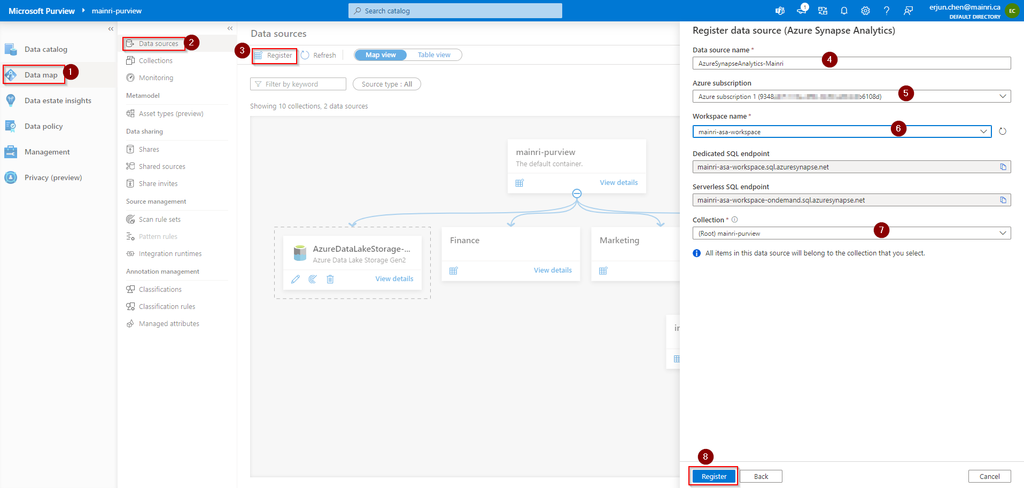
Register Synapse Analytics Workspace

Assuming you have created Collects, we directly jump into register Azure Synapse Analytics Workspace (ASA).

Purview Studio > Data Map > Data Source

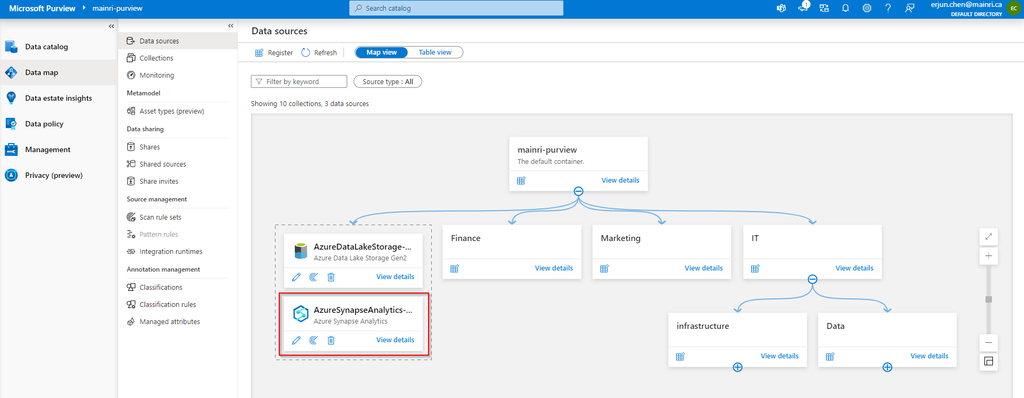
After filling in above values, click “register”, you will this

After registering the sources where your data assets are stored, you can scan each source to catalog the assets it contains. You can scan each source interactively, and you can schedule period scans to keep the data map up to date.

You may or may not see this error or alerts:

Read:

“Failed to load serverless databases from Synapse workspace, please give the managed identity of the Microsoft Purview account permissions or apply the correct credential to enumerate serverless databases.”

If you see it, you need create a login account for purview account to connect Serverless SQL:

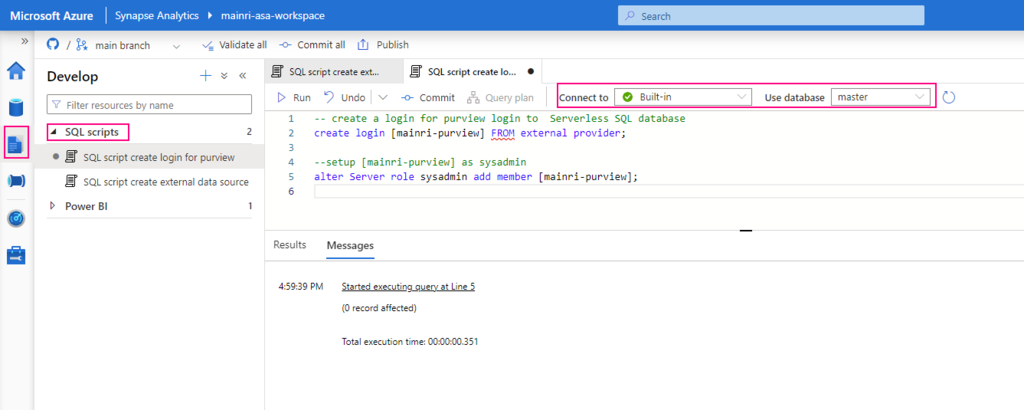
Create Serverless SQL database login account for Purview

— create a login for purview login to  Serverless SQL database


create login [mainri-purview] from external provider;

Synapse Studio > Develop > SQL Script >
select: “connect to Built-in” and use database “master”

Grant purview login account Sysadmin privilege

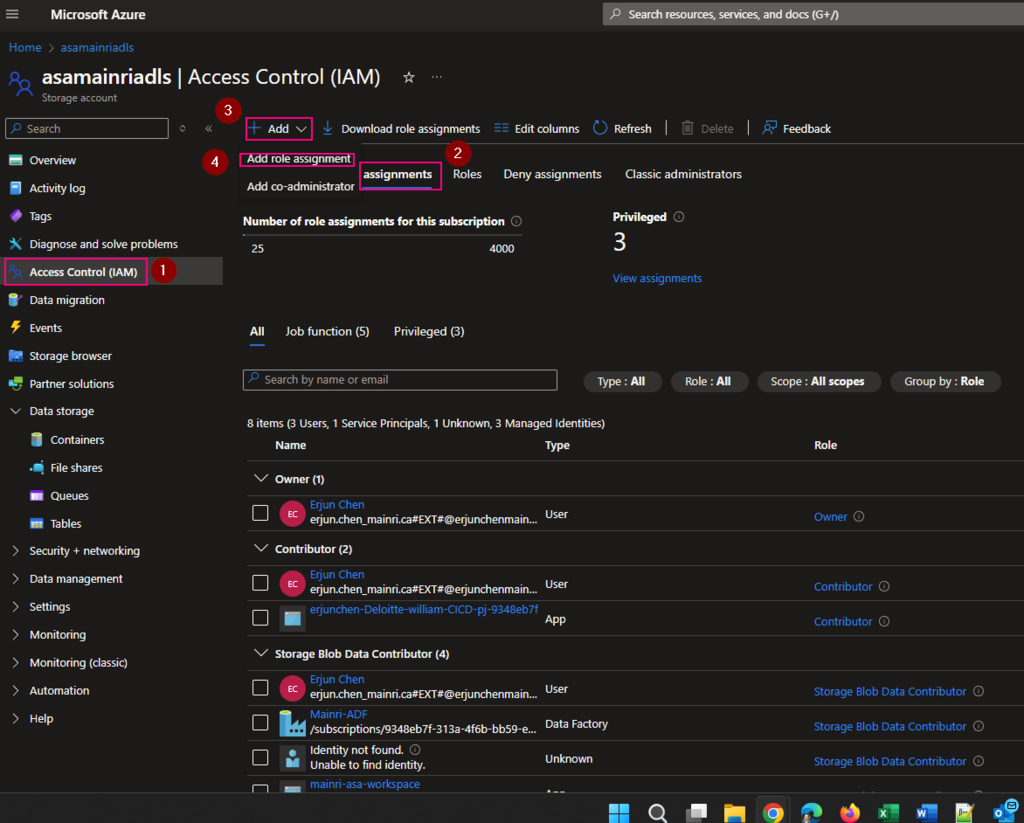
Add managed identity to the storage account

Then, add managed identity to the storage account.

From Azure portal > storage account > Access Control (IAM)

Select Role assignments tag

Add role assignments

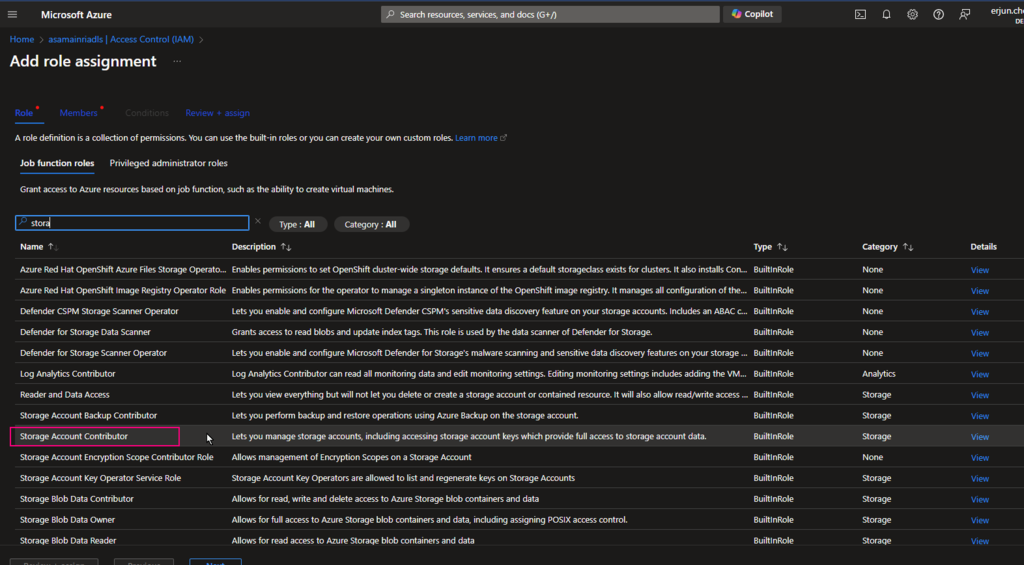
Give the “Storage Account Contributor” role

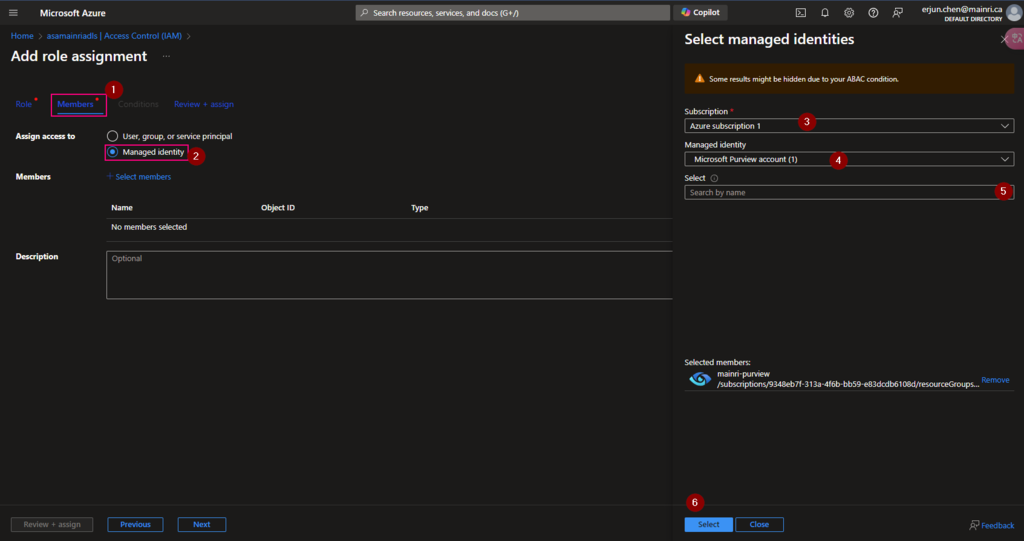
Then, select “Member” tag:

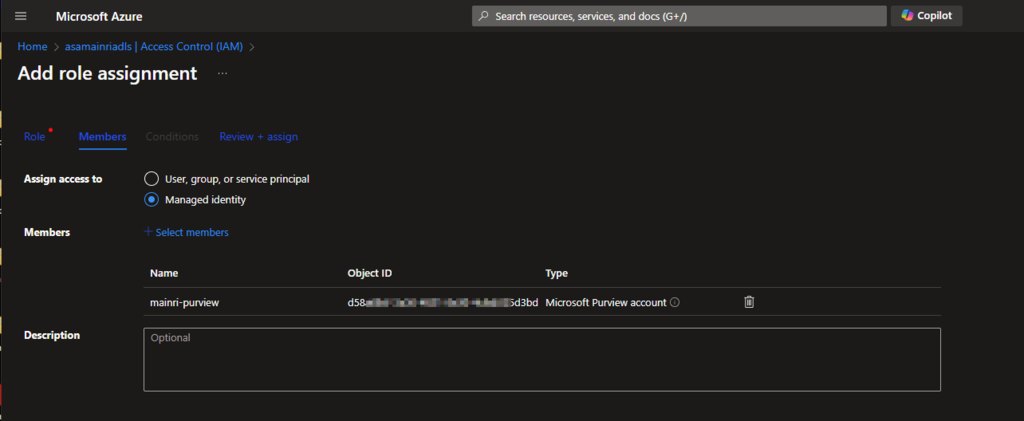
Select “Managed Identity”, fill in all properties, Find out the purview account

Now, the role assignments added.

If you have dedicated SQL pool, we need repeat these.

  • Create Serverless SQL database login account for Purview
  • Grant purview login account Sysadmin privilege

Let’s test the connection

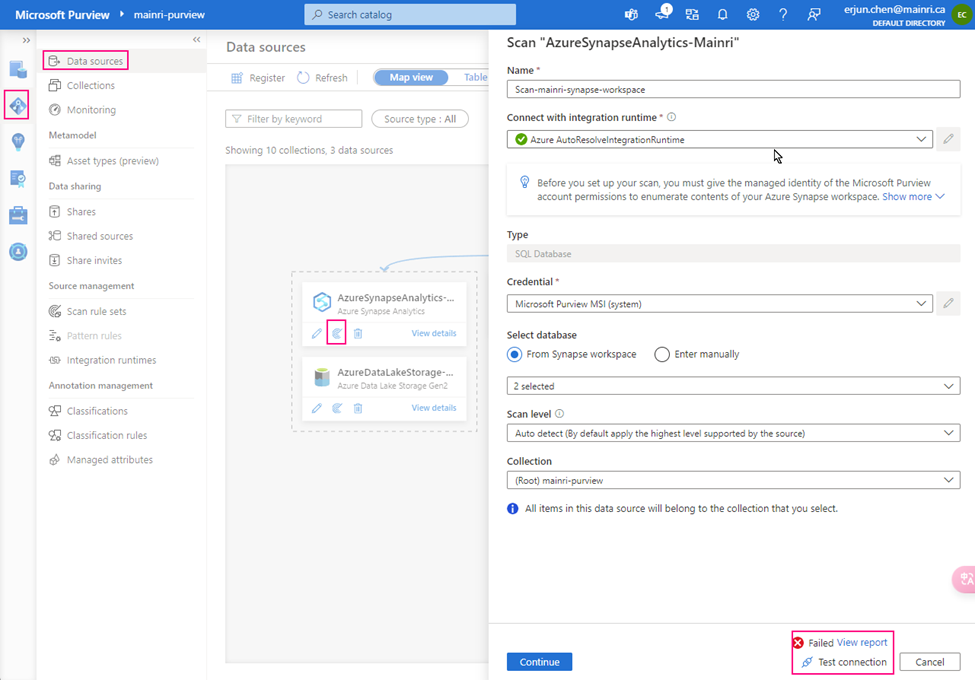
From Purview studio > scan

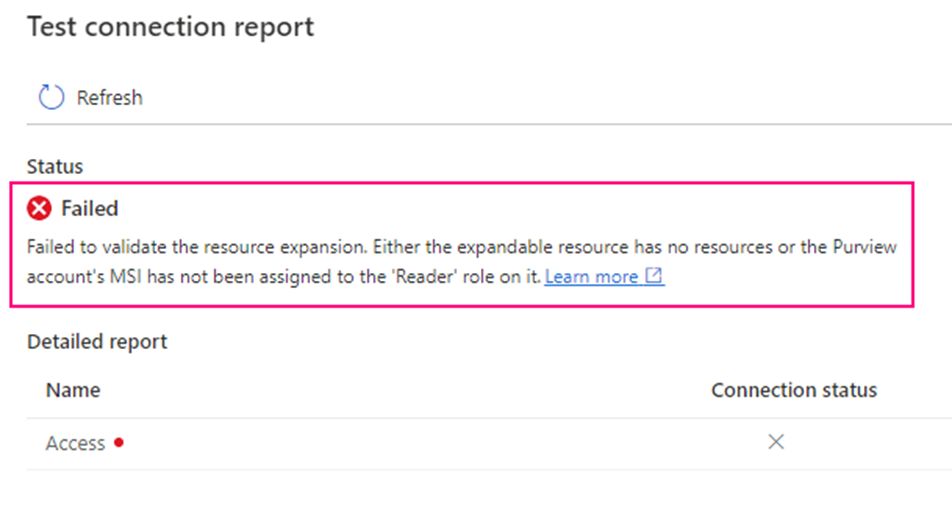
we got failed alert.

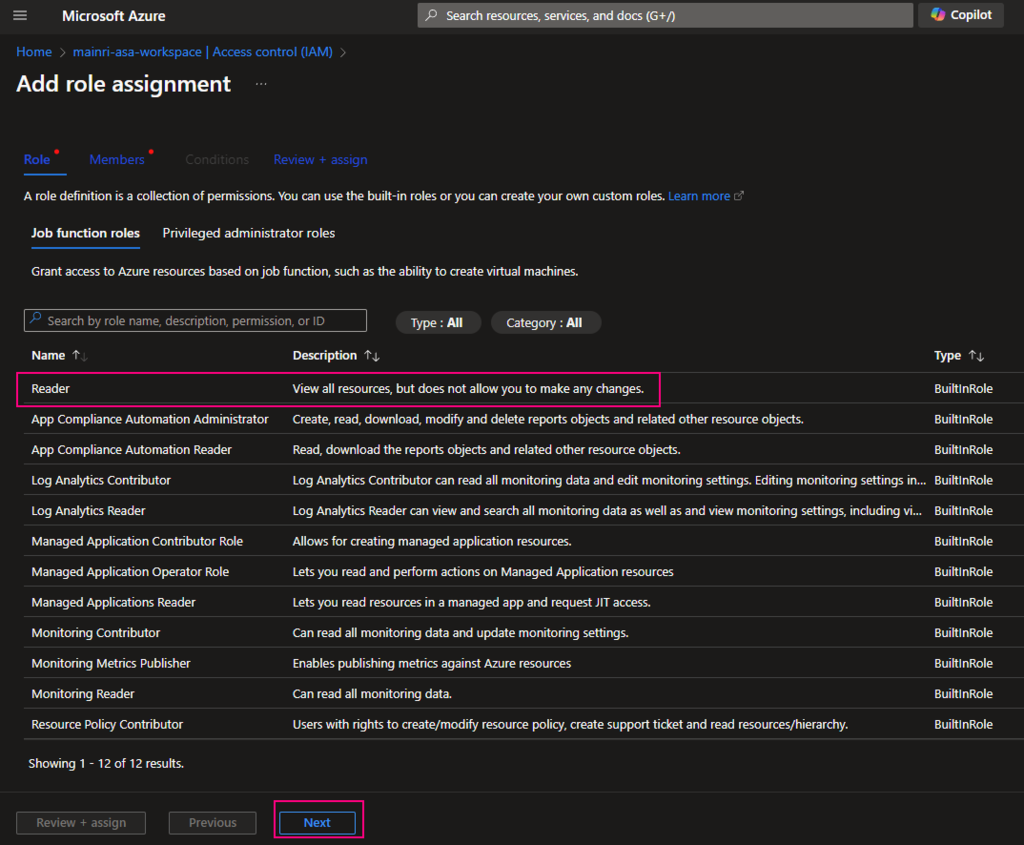
“Failed to validate the resource expansion. Either the expandable resource has no resources or the Purview account’s MSI has not been assigned to the ‘Reader’ role on it.”

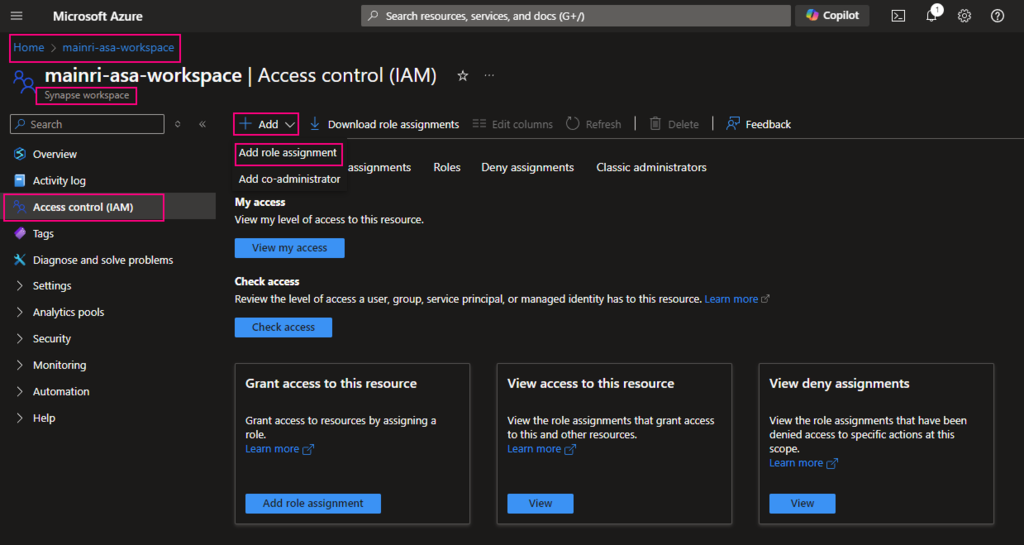
Go back to Synapse portal

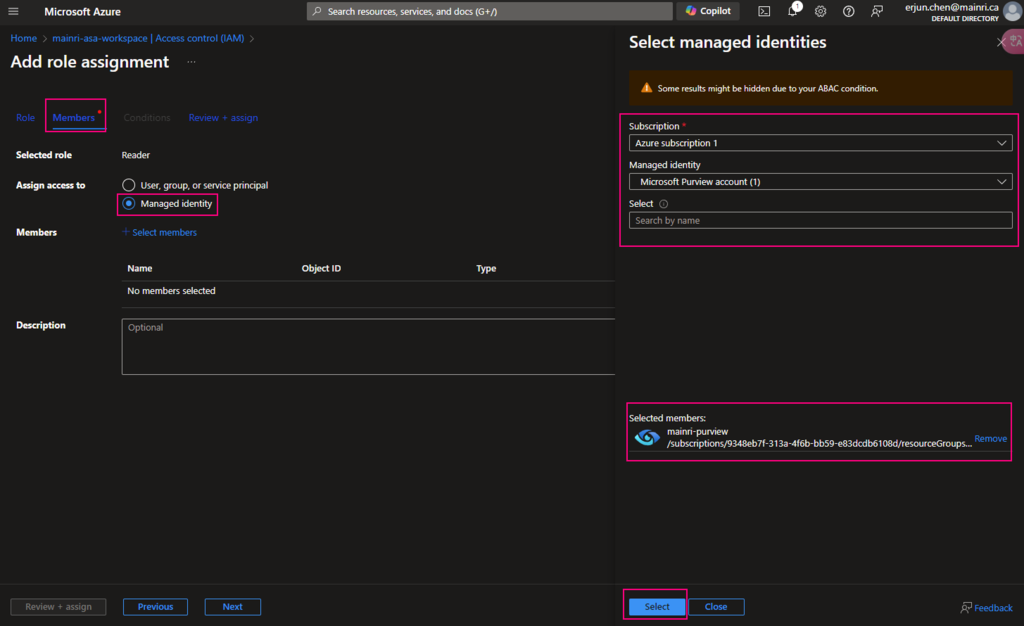
Azure Portal > Synapse workspace > Access control (IAM) > Add role assignments

add “read” role

Add “managed Identity” member – Purview

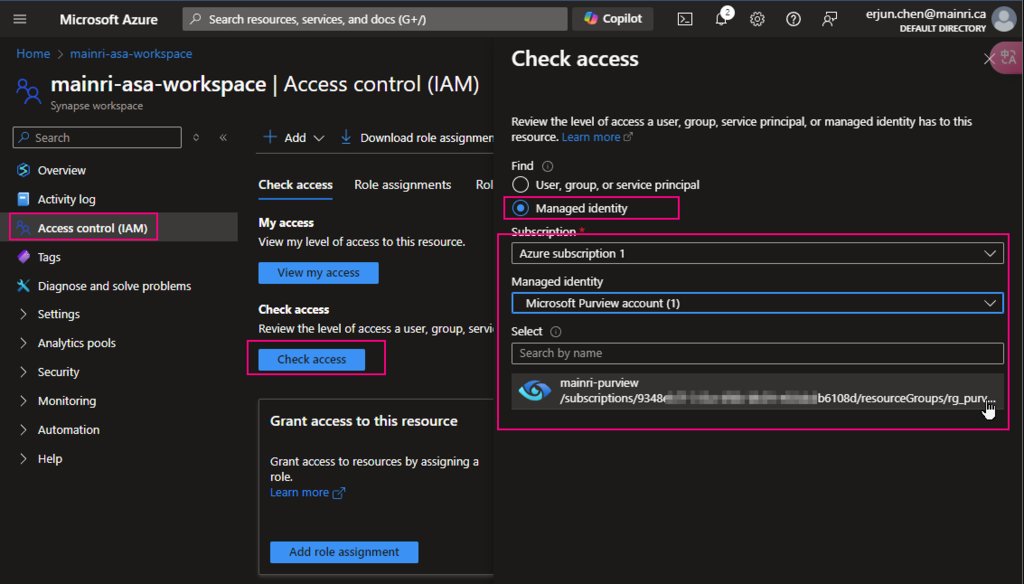
Check Purview access,

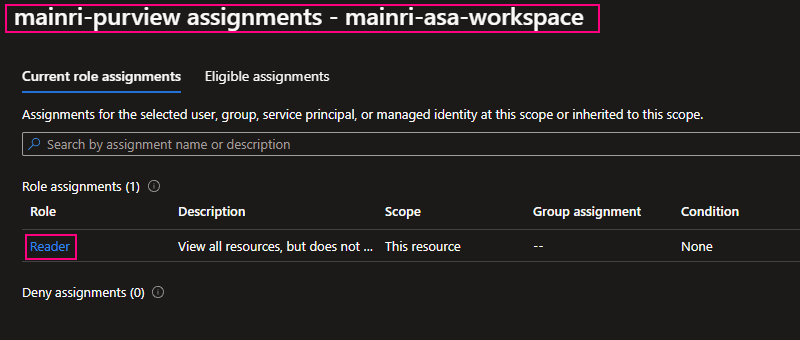
we can see Mainri-purview assignments – mainri-asa-workspace has “read” role (my Synapse workspace named “mainri-asa-workspace”)

Go to Purview Studio test connection again.

Great! We successful connect to Synapse workspace.

We have gotten access to SQL; we’ve got access to storage account. we have add “read” role assignment to Purview

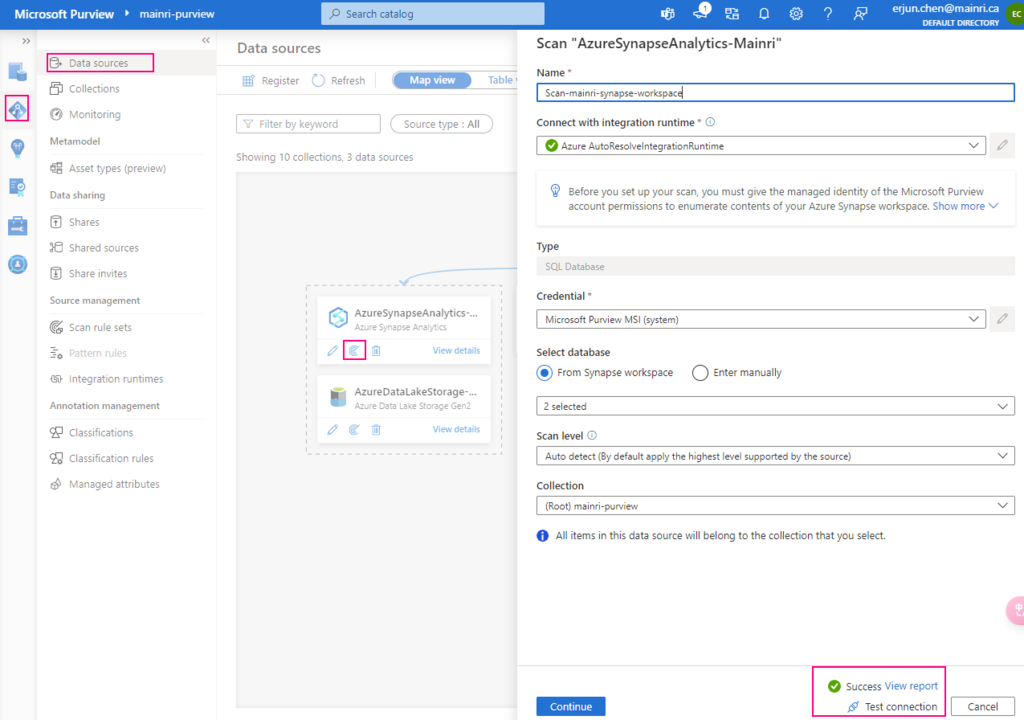
Alright, we are ready to go – scan.

Scan Synapse workspace

After registering the sources where your data assets are stored, you can scan each source to catalog the assets it contains. You can scan each source interactively, and you can schedule period scans to keep the data map up to date.

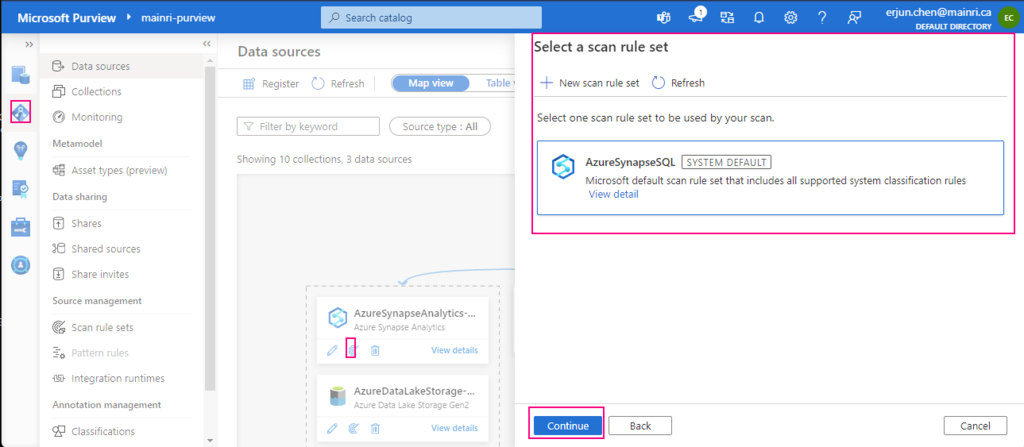
Select a scan rule set

If you like, you are able to add even more new scan rule set at this step.

For this demonstration, we select default scan rule set.

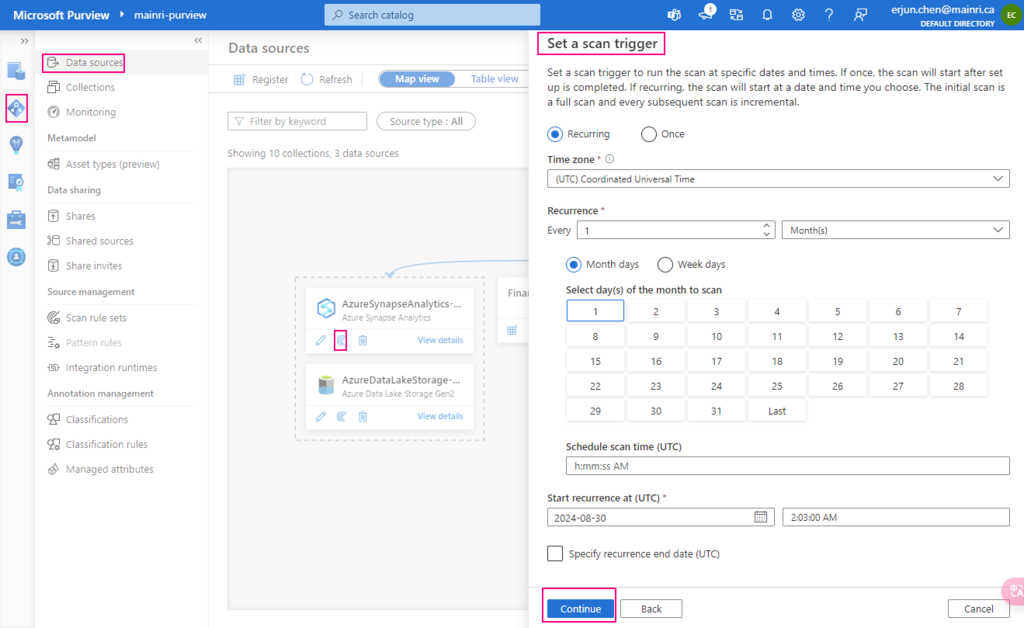
Set a scan trigger

We ca either scan once or schedule and recurring scan on schedule.

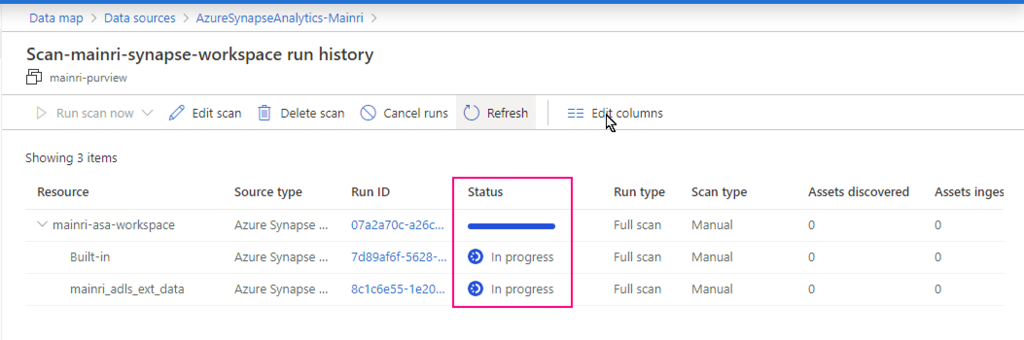
Monitoring the scan progress ….

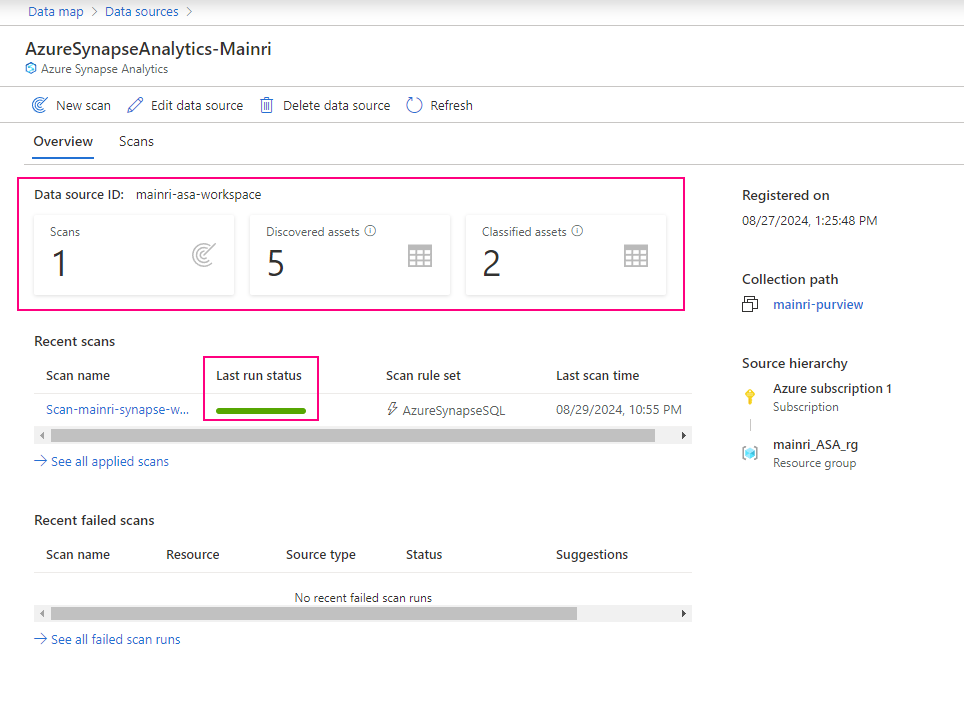
Once the process done, we will see this:

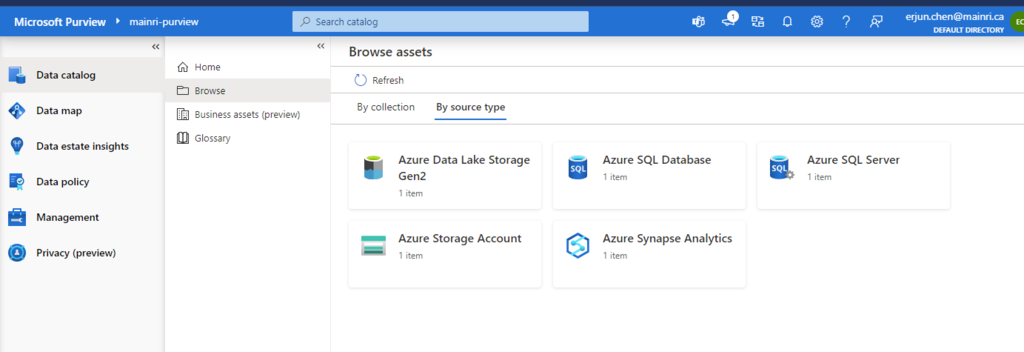
Alright, we have done the Purview for scanning Azure Synapse Workspace. Now, we have those source in our Azure purview.

Next step: Day 7 – Day 7: Permission and Roles, Business Glossary and Collections Access Control in Purview

Please do not hesitate to contact me if you have any questions at William . chen @ mainri.ca

(remove all space from the email account 😊)